

Features
Import an existing project
Move a WordPress site or a project from another builder into Macaly
You can bring a site or app you already have into Macaly and keep working on it here. On Home, click + in the message box, choose Import existing project and pick where the project lives now.
| From | How it moves |
|---|---|
| Lovable | Lovable’s agent moves it through a connector |
| Bolt.new, Replit, v0, Base44 | A ZIP export you upload |
| WordPress | The site’s address, or a backup file |
Lovable
- In Lovable, open Connectors → Add MCP server.
- Name it Macaly and paste the Server URL shown in the import window.
- Keep OAuth, click Add server and sign in to Macaly.
- Open your project in Lovable and send the prompt shown in the import window.
Lovable’s agent moves the project. Nothing is uploaded by hand.
Bolt.new
- Open the project menu.
- Choose Export → Download.
- Upload the ZIP to Macaly.
Replit
- Download the project as a ZIP.
- Export any data you want to keep.
- Upload everything to Macaly.
v0
- Open the project menu.
- Choose Download ZIP.
- Upload the ZIP to Macaly.
Base44
- Open More actions.
- Choose Export project as ZIP. Export requires the Builder plan or higher.
- Upload the ZIP to Macaly.
Bringing data too
A ZIP from Replit, v0 or Base44 holds the code, not the rows in your database. Export your tables separately and send them in the chat after the import.
WordPress
There are two ways to move a WordPress site.
- From the address. Type the site’s address. Macaly reads the public pages, posts and images. The site has to be public. Use this for a simple site with no forms data, bookings or shop you need to keep.
- From a backup. Upload a backup file. The backup holds everything: pages, posts, drafts, images, the theme and the data your plugins saved (form entries, bookings, orders). Use this when the data matters.
Then the agent reads the site, tells you what it found and asks once what to move: the look, the data, which functions to rebuild and whether to keep drafts. Then it builds the whole site in one pass.
User accounts and passwords stay behind. People sign up again on the new site.
Make a backup with UpdraftPlus
1. Install the plugin
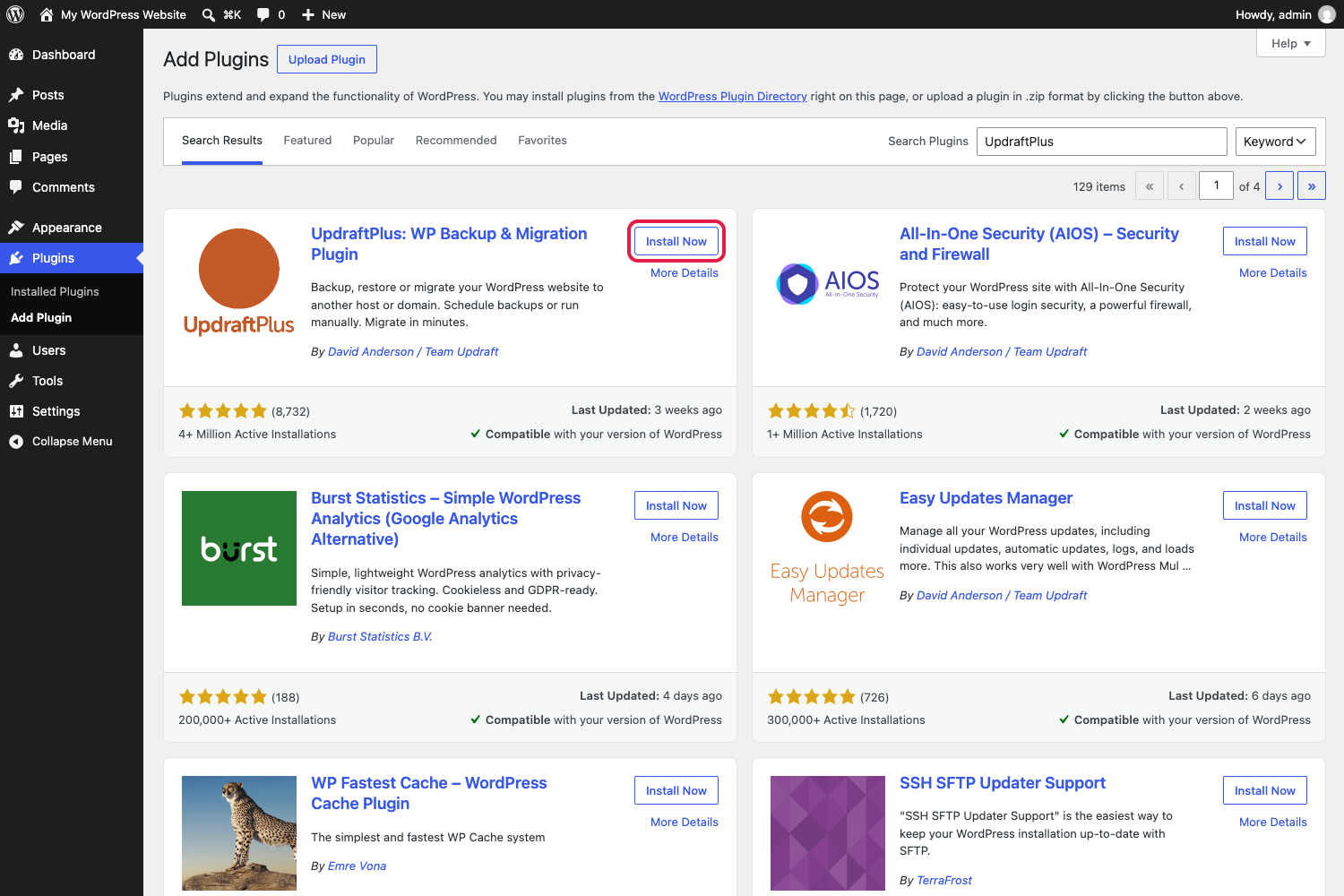
In your WordPress admin open Plugins → Add Plugin, search for UpdraftPlus and click Install Now.
2. Activate it
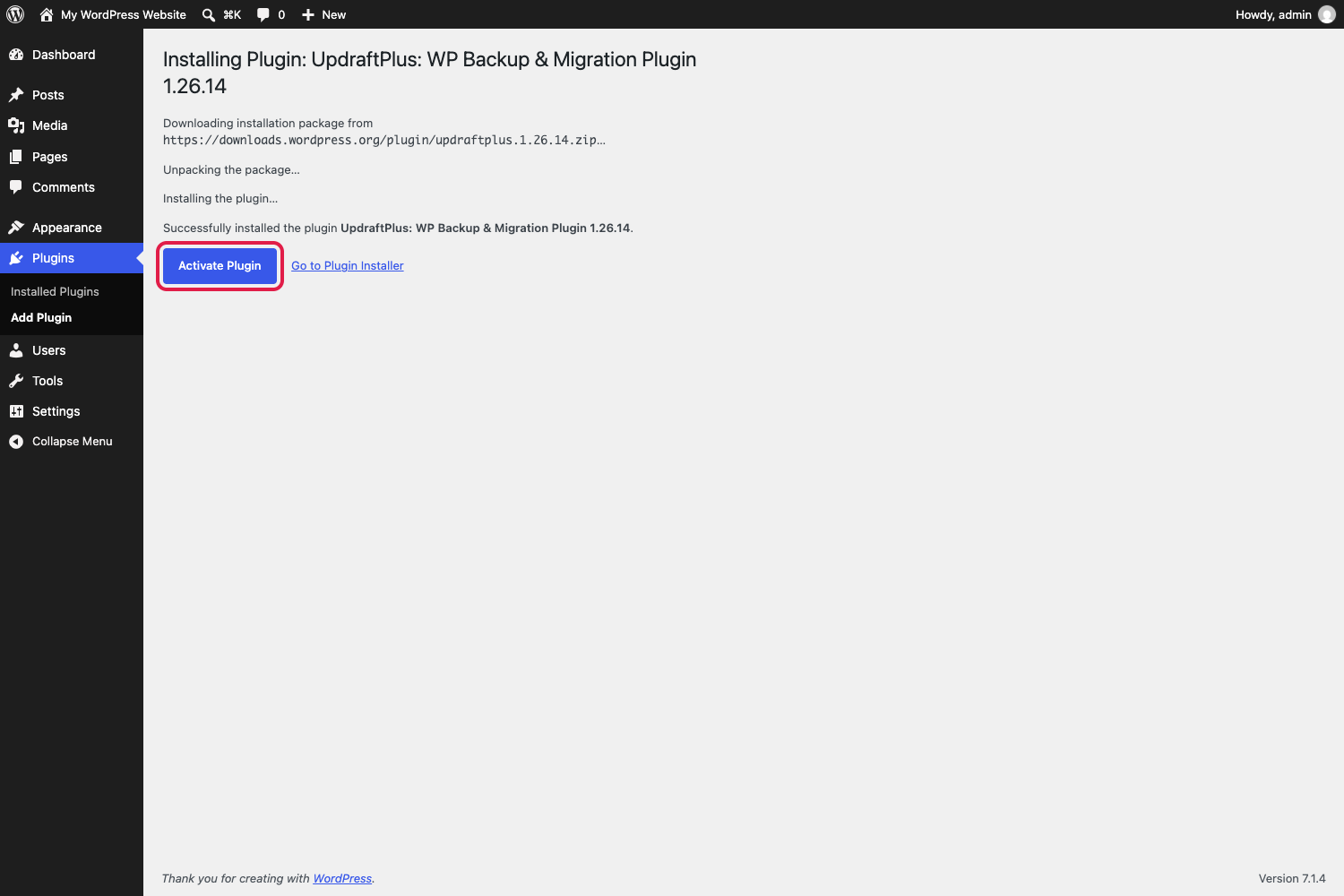
Click Activate Plugin. If a welcome screen opens, click Exit setup.
3. Start a backup
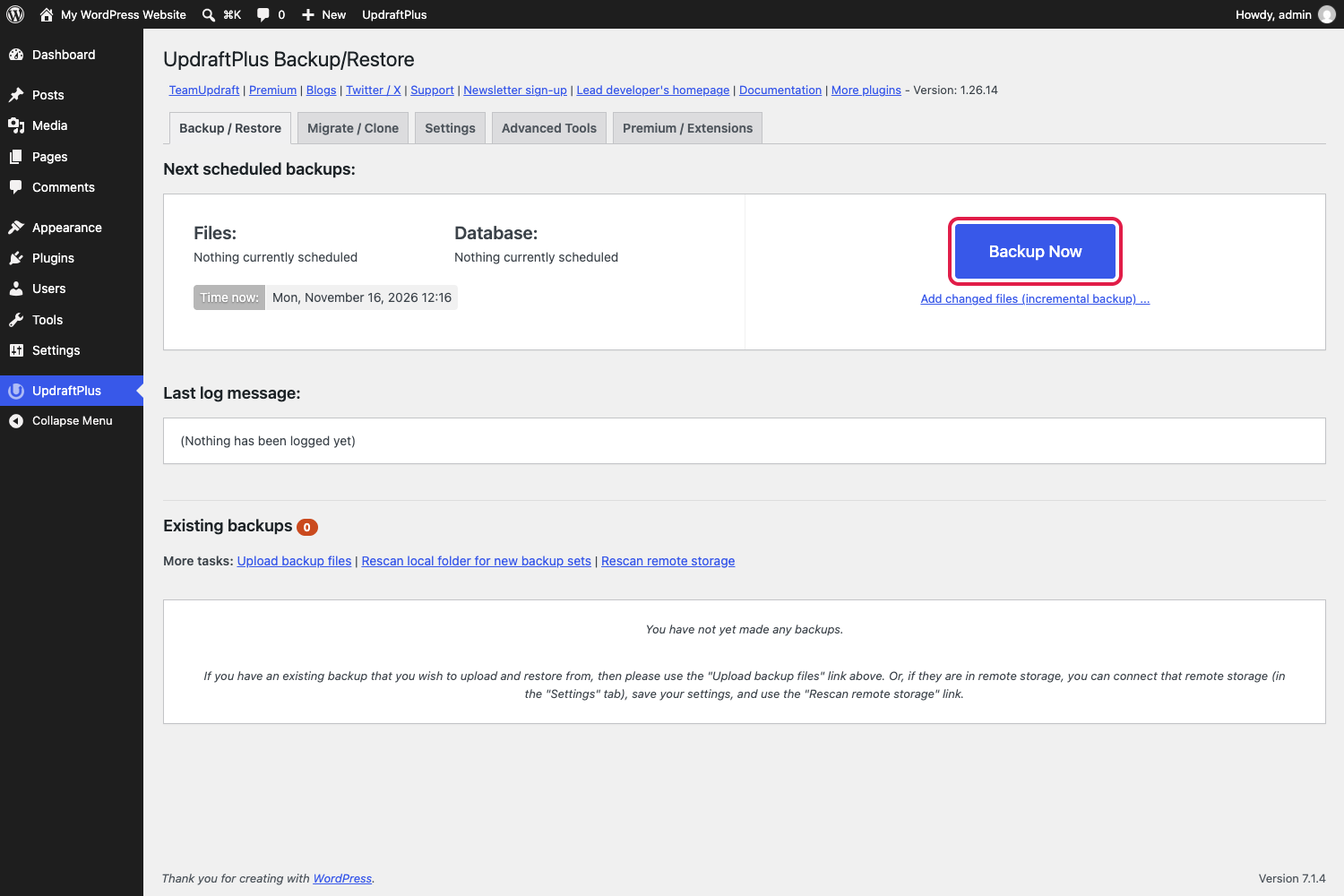
Open UpdraftPlus in the left menu and click Backup Now.
4. Confirm
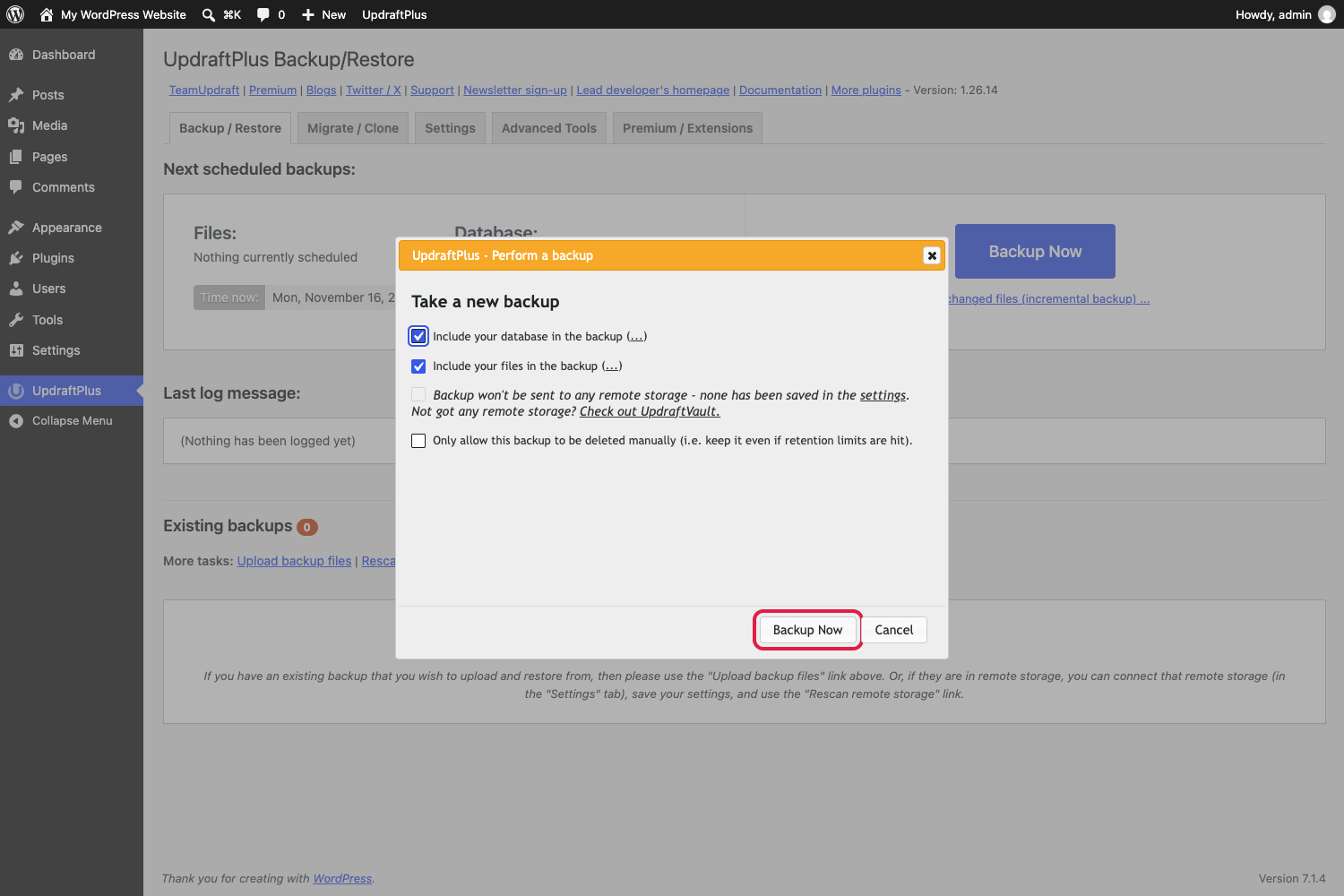
Keep Include your database and Include your files ticked and click Backup Now. The backup takes from a few seconds to several minutes.
5. Download the files
The finished backup shows under Existing backups. Click Database, Themes and Uploads in turn.
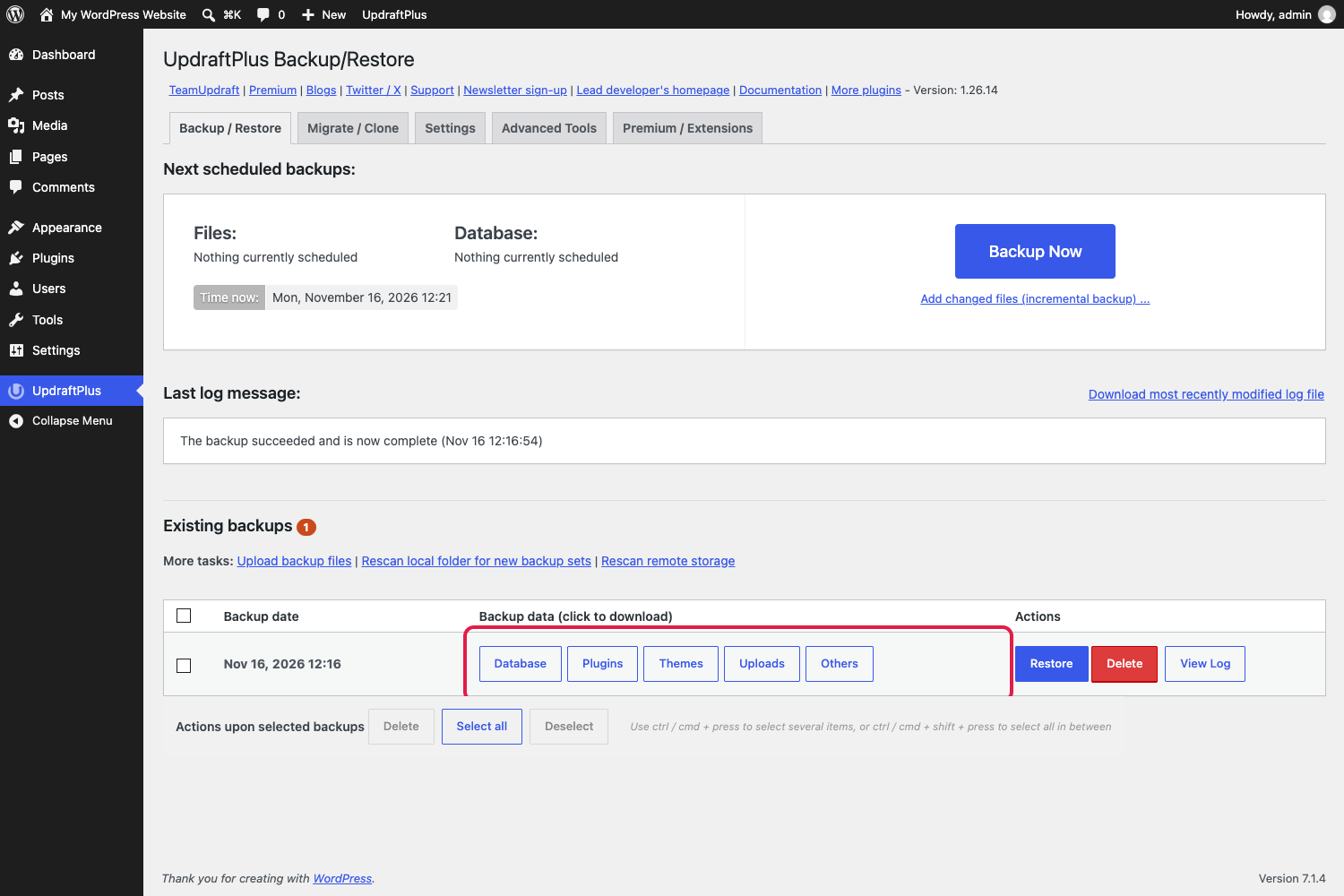
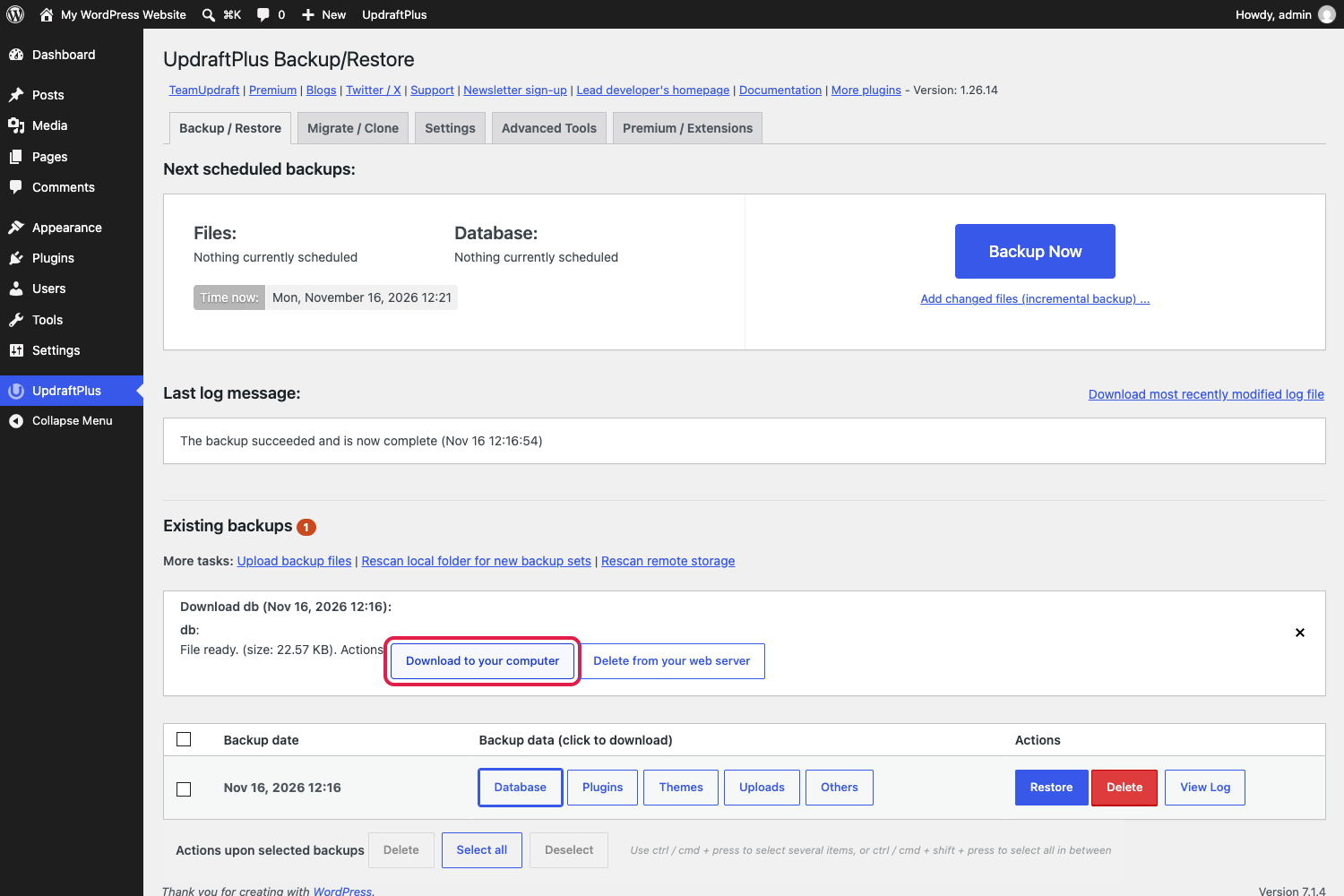
Each opens a row with Download to your computer. Uploads can come in several files: download all of them. Plugins, Must-use plugins and Others are not needed, but they do no harm: if it is easier, download every file and upload them all.
6. Upload them to Macaly
Back in Macaly, drop all the downloaded files into the import window at once. Together they can have up to 1 GB.
If the backup is larger than 1 GB, leave out the Uploads files: the images then come from your live site.
Other backups
A .wpress file from All-in-One WP Migration, a Duplicator ZIP or a .sql or .sql.gz dump works too.
With All-in-One WP Migration:
1. Install and activate the plugin
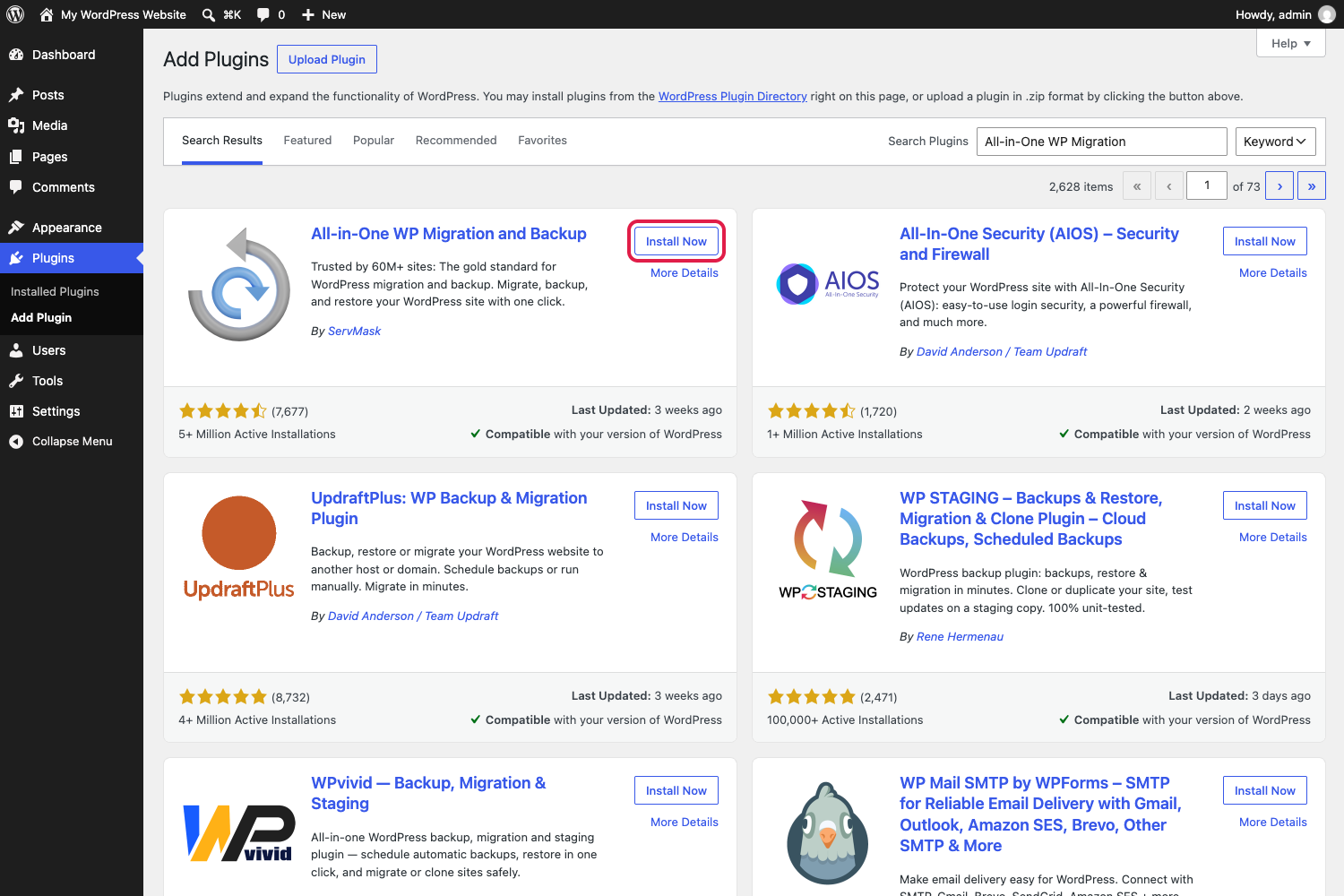
In Plugins → Add Plugin search for All-in-One WP Migration, click Install Now and then Activate Plugin.
2. Open the export
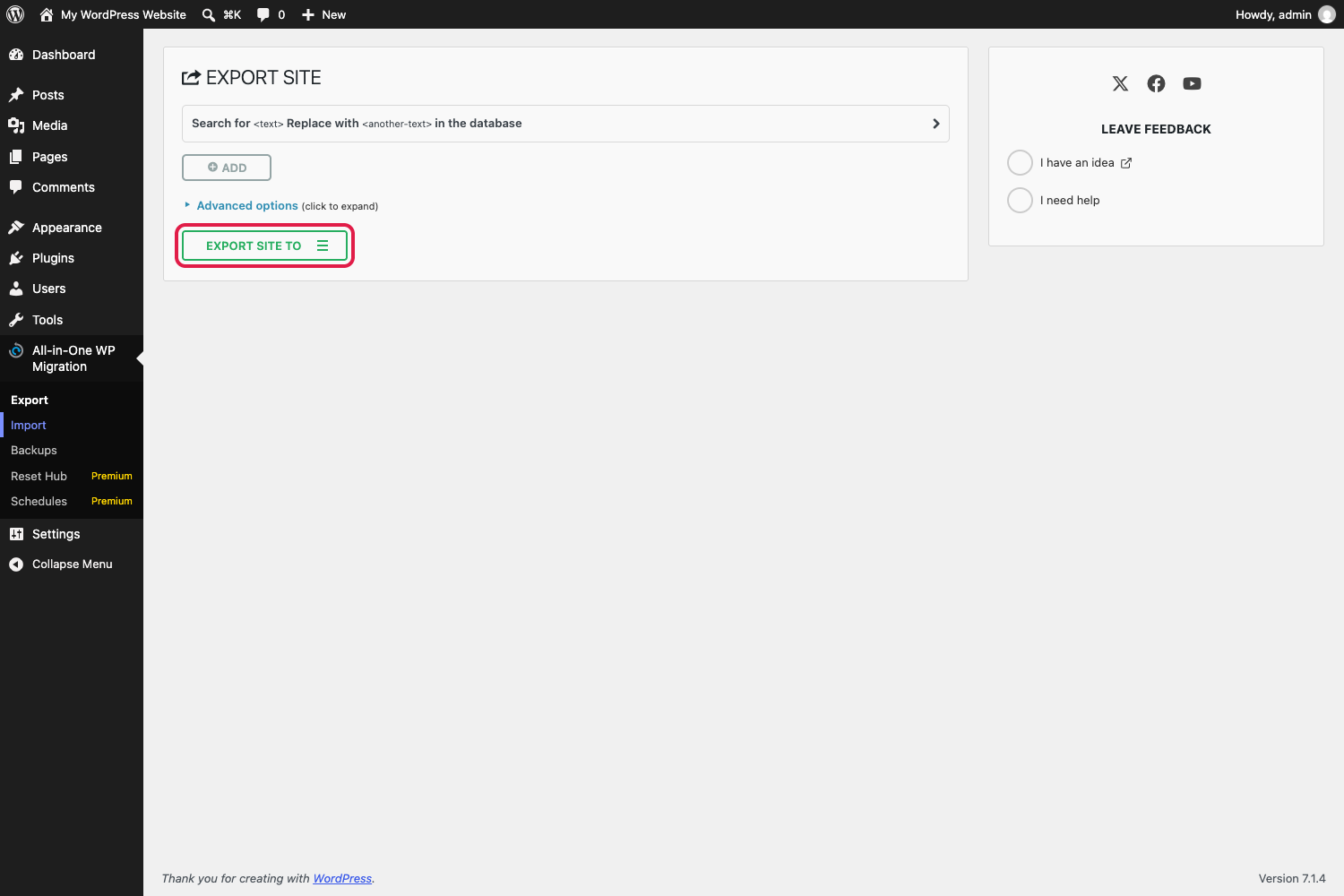
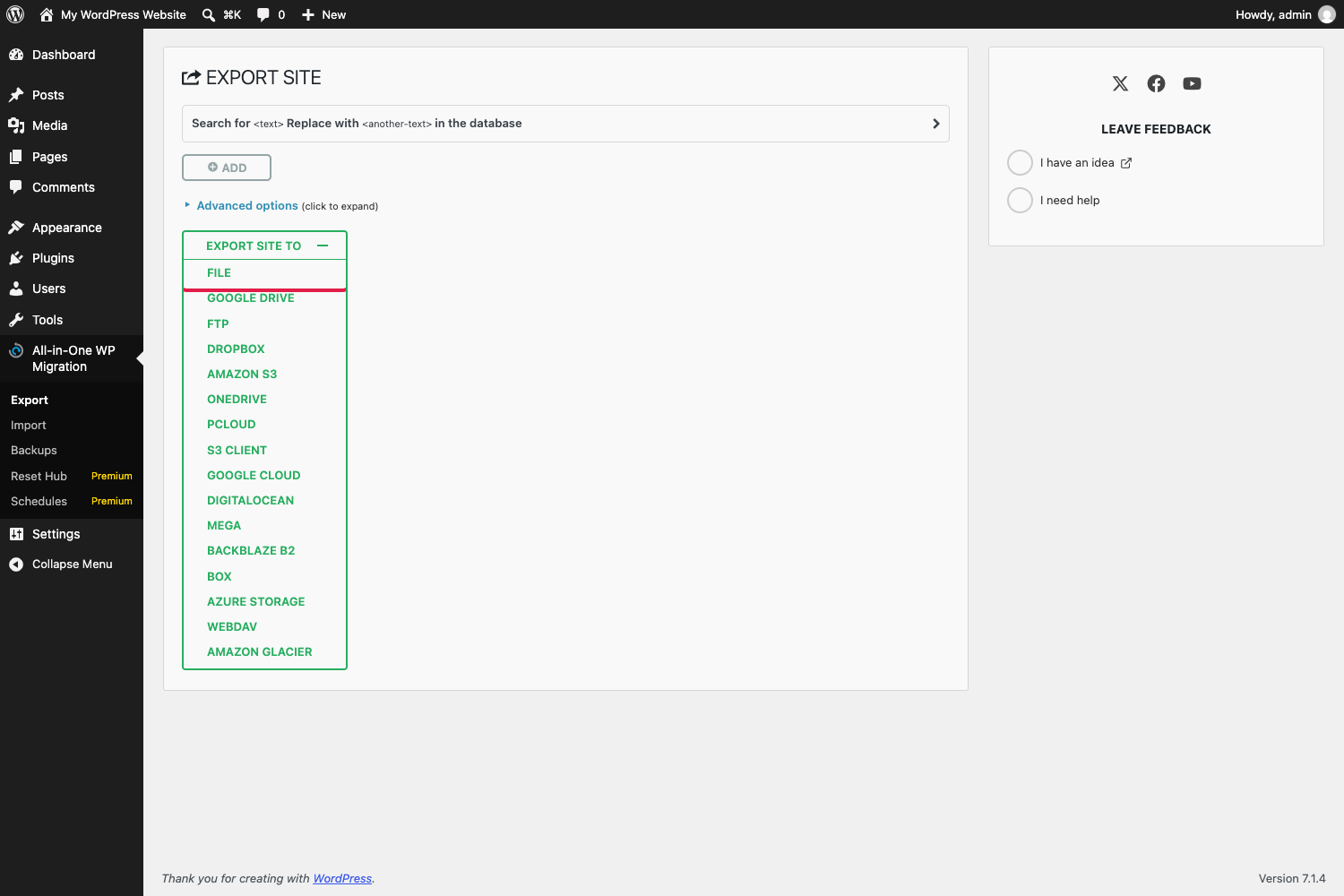
Open All-in-One WP Migration in the left menu and click Export site to.
3. Choose File
Pick File at the top of the list and wait until the plugin packs the site.
4. Download and upload
Click the green Download button and upload the .wpress file to Macaly.
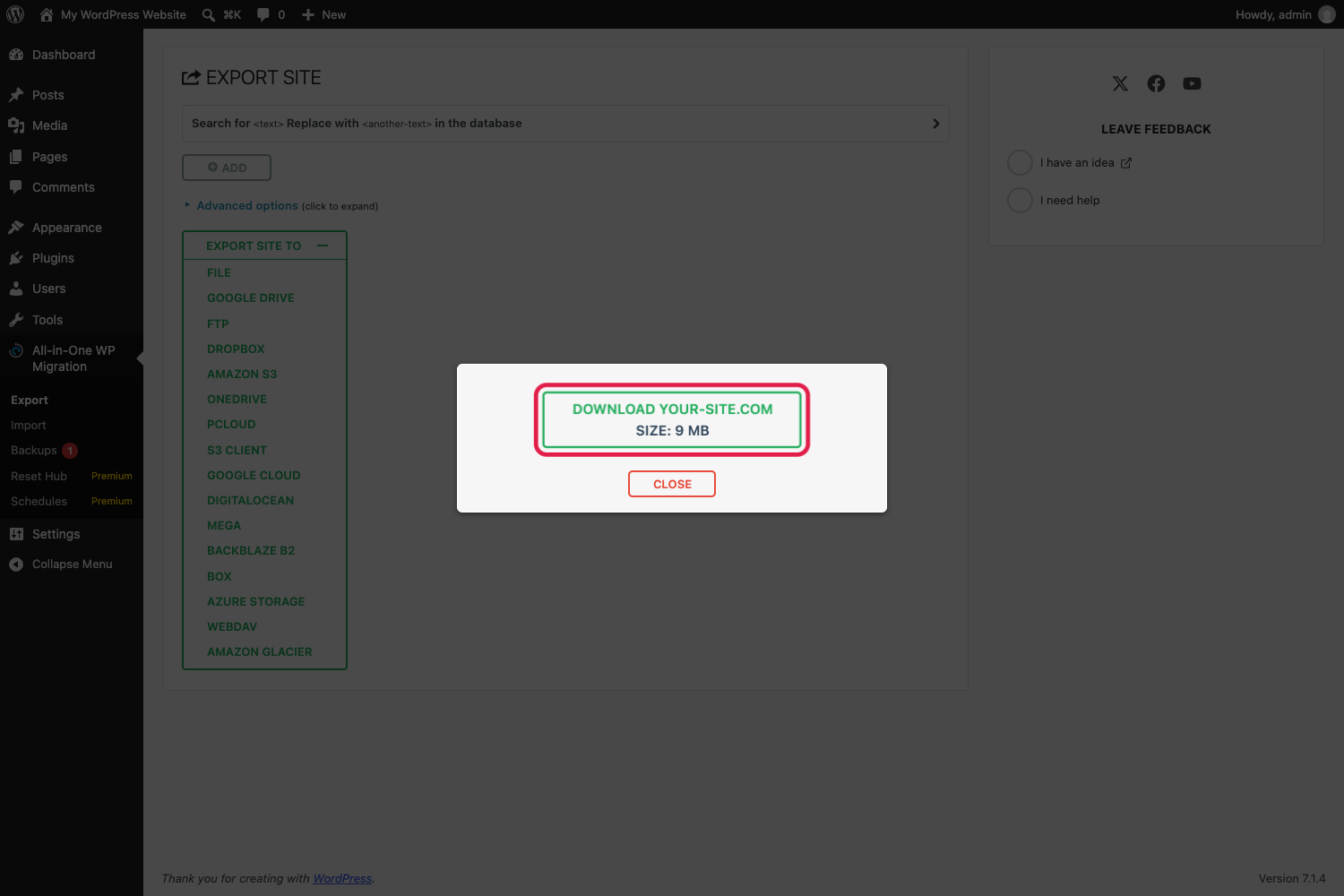
Some hosts block .wpress files, so the download fails with an error such as “File wasn’t available on site” or a 403 page. The backup itself is fine. Use UpdraftPlus instead: it saves ordinary files.
After the import
Delete the backup from your WordPress server: Delete next to the backup in UpdraftPlus, or All-in-One WP Migration → Backups. A backup can take as much space as the site itself. You can remove the plugin as well.