

Available on the Agency plan only
Commenting works on desktop only. On a phone, the shared preview opens for browsing only.
Sharing a project for comments
- In your chat, click Share in the top bar.
- Choose Anyone with the link.
- Set the permission to Can comment.
- Copy the link and send it to your collaborators or clients.
Leaving a comment
The shared link opens the live preview of your project. Click Comment to see the comments that are already there and to add your own: click any element on the page and a comment box opens for it. Until then, the preview works like the site itself.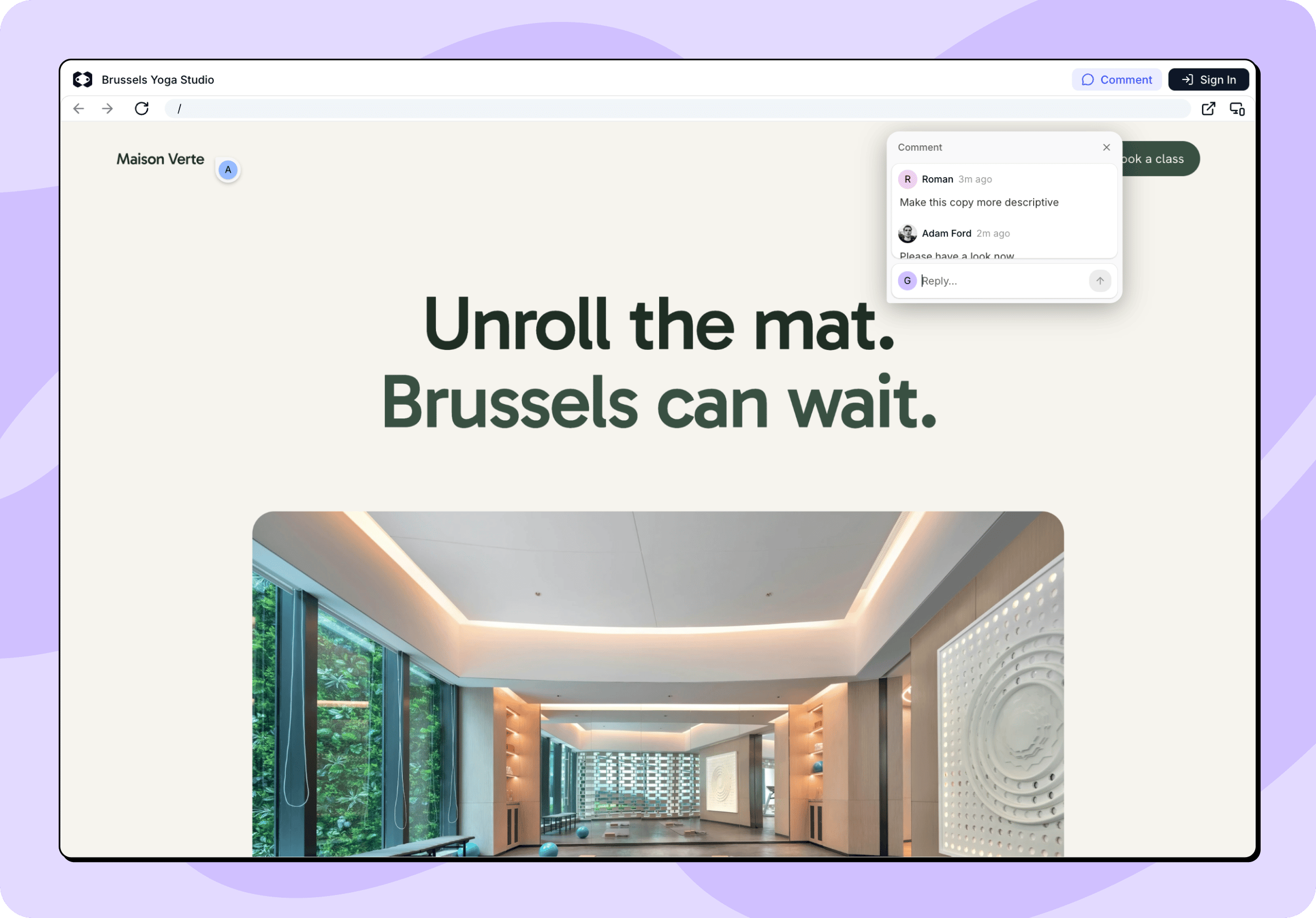
Reviewing feedback
In your chat, click Comment above the preview. Pins appear on the page where comments were left, and the Comments panel opens on the left in place of the conversation, listing every thread in the project with the number of open and unread comments. You can add comments of your own here too.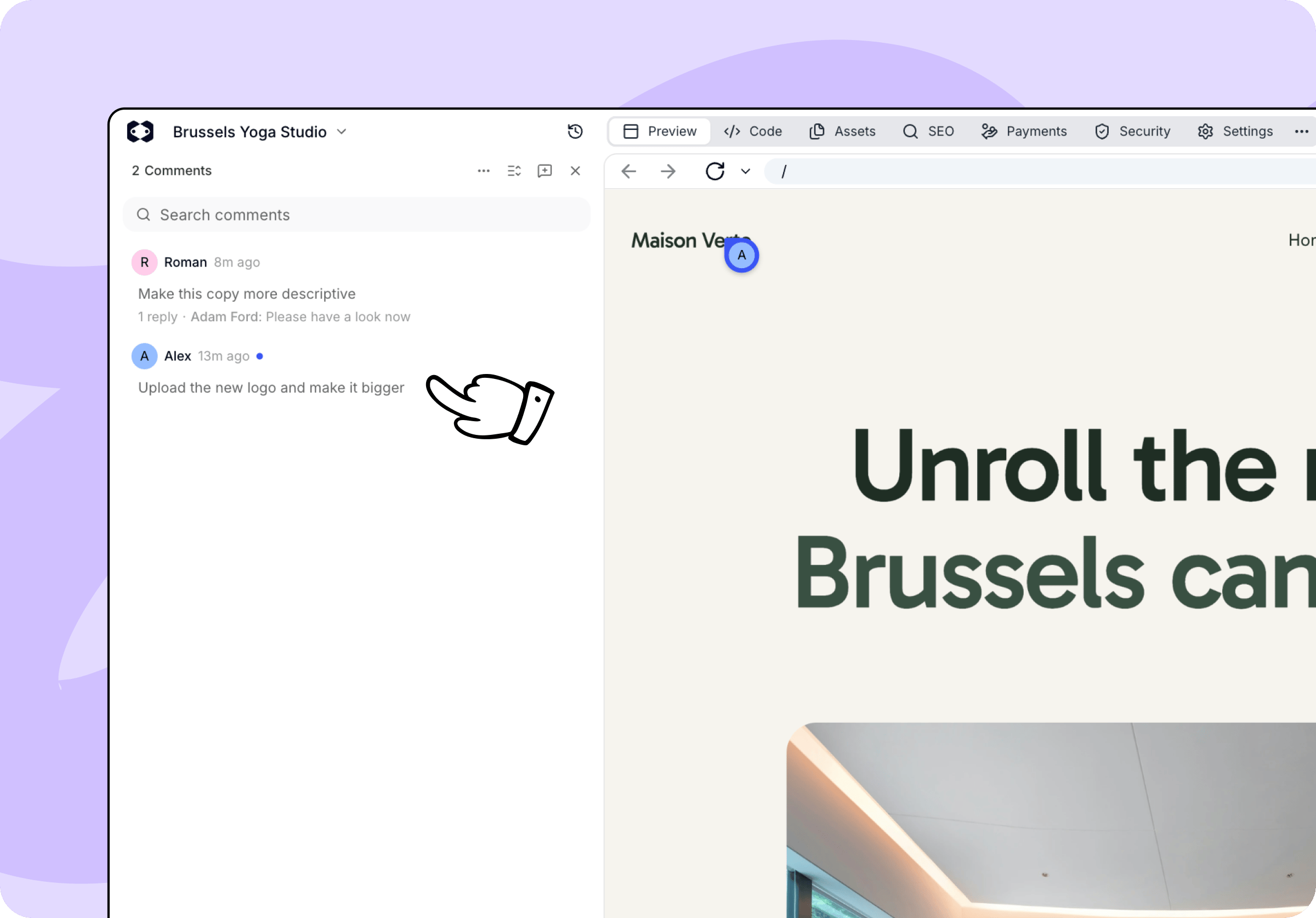
- Reply in a thread. Commenters see the reply on the shared page.
- Resolve a thread when it’s dealt with, and Reopen it if you come back to it. A new reply also reopens a resolved thread.
- Search comments and sort them by date or by unread comments.
- Show resolved to look back at earlier feedback.
Sending comments to the agent
You don’t have to retype feedback into a prompt by hand. Click Add to chat on a thread and the comment, together with the element it points at, lands in your message box. Add all open to chat collects every open thread at once. Add anything you want to say, then send the message. The agent works through the feedback like any other request. You can keep reading and replying to comments while it works, and resolve the threads once you’ve checked the result.Changes the agent makes in response to comments use credits like any other request. Commenting, replying, and resolving threads don’t use credits.