

How to showcase a project in the community gallery
You can start from the project itself, or from the community page. Both routes work the same way.1
Open the share options
In your chat, click Publish, open More options (⋯), and click Share to community. The option appears once the project is published. Password-protected sites can’t be shared, so publish the site as Public first.You can also click Showcase project in the community gallery or on your profile and pick from a list of all your projects. If a project isn’t published yet, you’ll need to publish it first.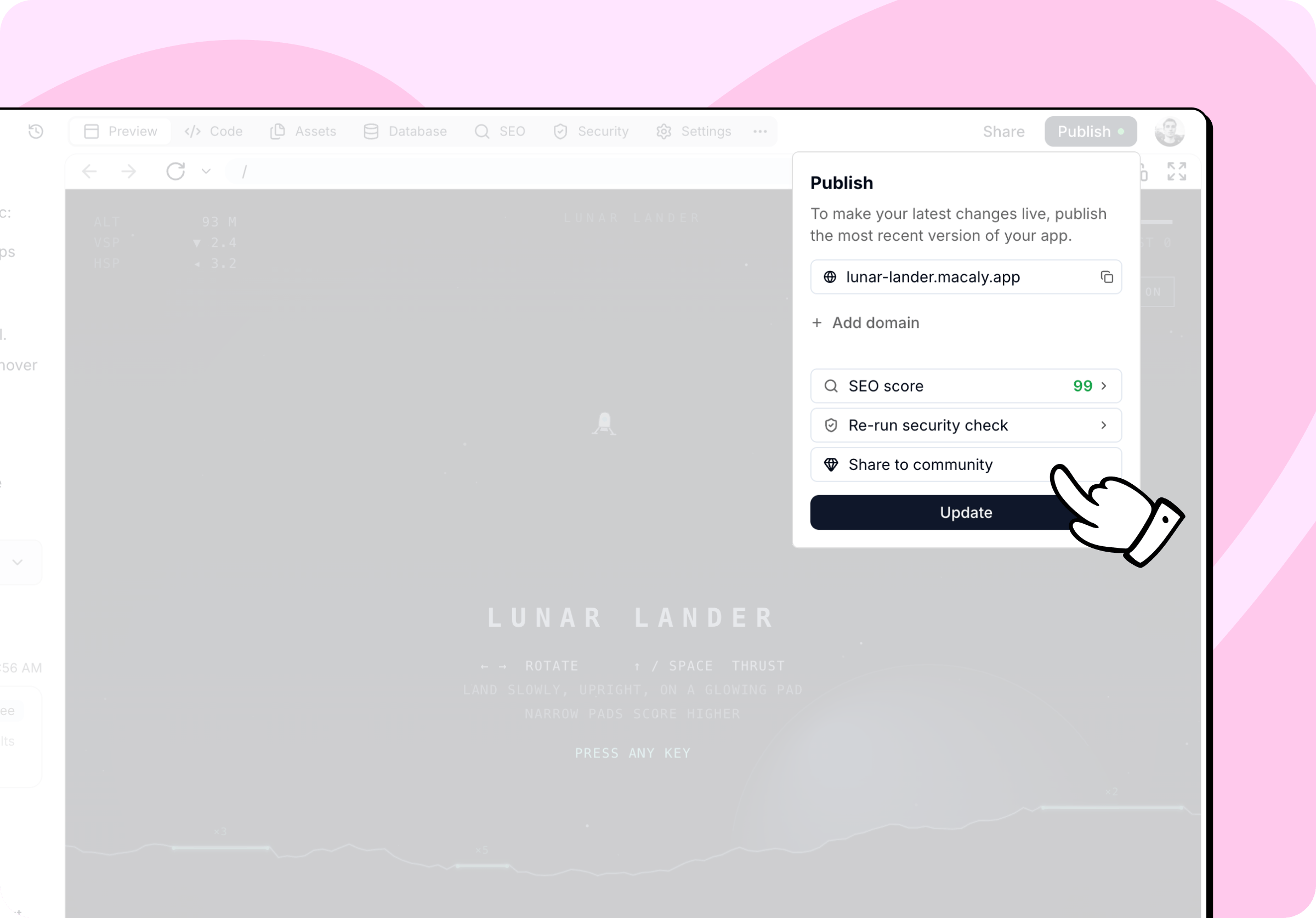
2
Describe your project
Upload your own 16:9 image, or use the screenshot Macaly generated. If your project has an OG image, Macaly uses it the first time you showcase the project. Switch between OG image, Screenshot, and Upload on the thumbnail. To take a new screenshot, for example after a redesign, click Take a screenshot. You can upload a PNG, JPG, or WebP file up to 5 MB.Check the Project name and fill in the Description explaining what the project does and why you built it. You can also use Write with AI, which drafts the text for you based on your project.Pick a Category so people can find your project when they filter the gallery. Macaly suggests one based on your project, and you can change it.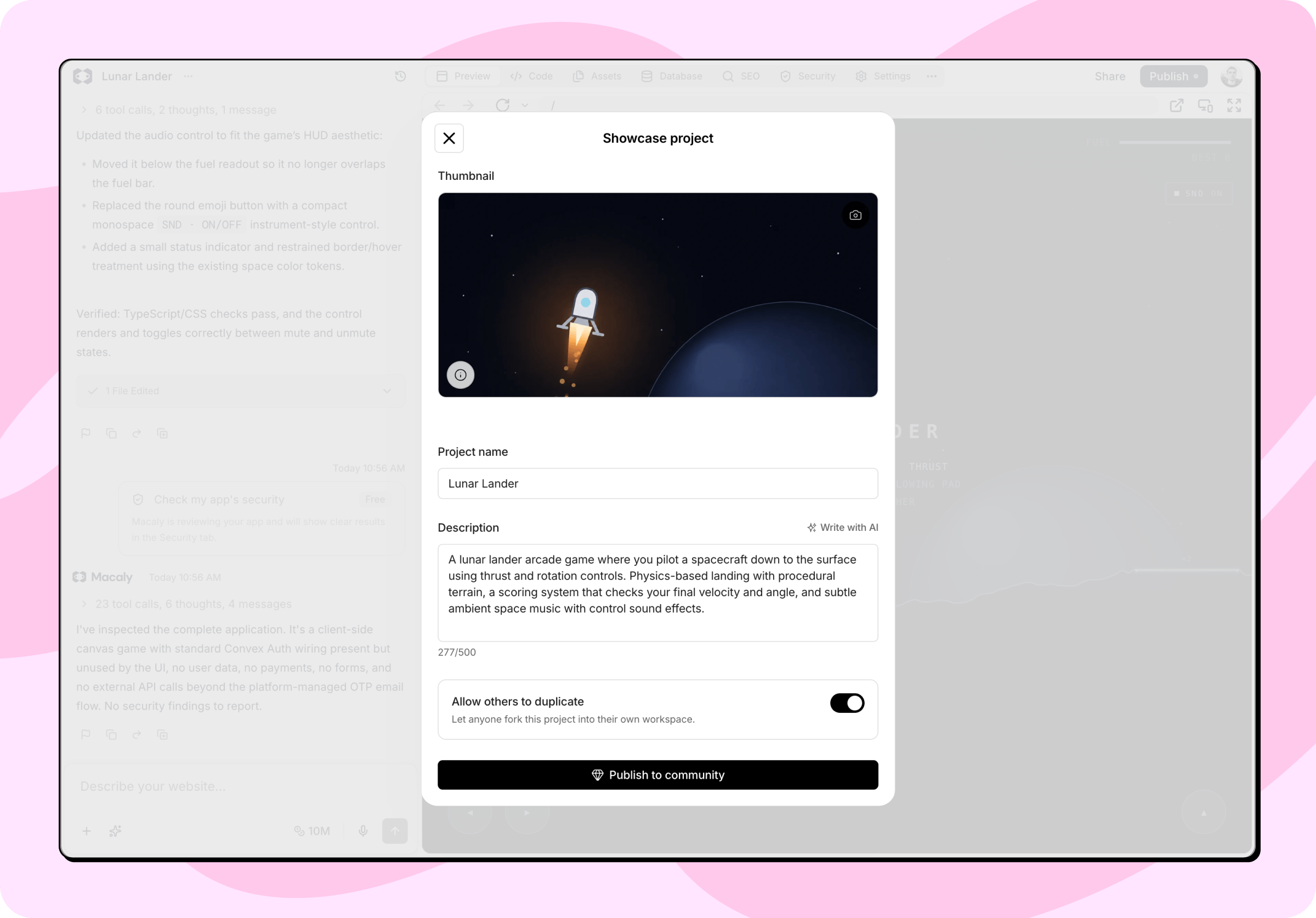
3
Publish it
Click Publish to community. Your project appears in the gallery and on your public profile straight away.
Changing the project name also renames the chat itself.
What’s publicly visible
Showcasing publishes the project name, description, thumbnail, and a link to the live site, alongside your profile name, username, and picture. Visitors also see how often the project has been viewed, liked, and duplicated. Each showcased project gets its own address based on its name, in the formmacaly.com/@username/project/project-name. The address is set when you first showcase the project and stays the same even if you rename it later.
Showcased projects go through automated moderation. A project that breaks the community rules can be removed from the gallery. You’ll then see a notice on it explaining that it can’t be shared.
Your chat history always stays private. Showcasing a project in the community gallery has no effect on who sees the original chat. See Sharing and visibility.