

Each chat represents one project. Macaly keeps context inside the chat, so it remembers what has already been built and continues from there.
Starting a new chat
Your home screen shows all your projects as a grid of cards. Use the Chats tab to see your works in progress, or switch to Published Apps to see everything you’ve made live. You can also use the search bar to find a project by name. To start something new, click into the prompt at the top of the page and describe what you want to build. No special commands or technical language needed. Just explain it the way you would to a person.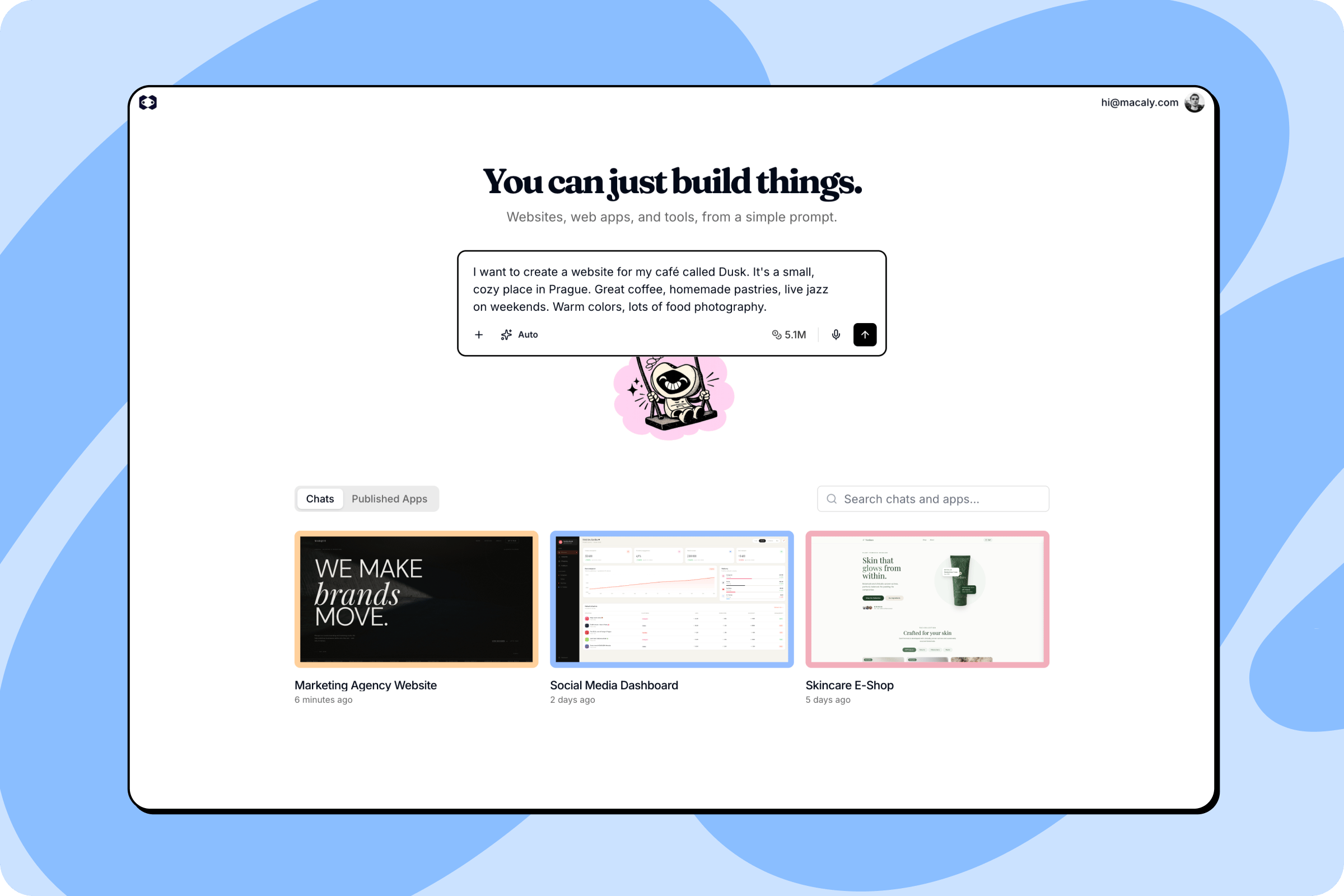
Inside a chat
Once you’re in a chat, you’ll see two main areas: the conversation on the left, where you talk with the agent, and the workspace on the right, where you can view and manage every part of your project. A project can also hold several variants, each with its own code and conversation. Switch between them from the top bar.
- Preview: See your app or website running in real time as the agent builds it.
- Code: Browse the full source code of your project.
- Assets: Manage the files and media used in your project. See Assets.
- Database: View and edit your project’s data. See Databases.
- Payments: Manage Stripe payments and products for your project.
- MCP: Turn your app’s features into tools that Claude, ChatGPT, and other AI assistants can use. See Your app as an MCP server.
- Analytics: Track visitors and traffic to your published site. See Analytics.
- Settings: Configure your project name, sharing, custom domains, and secrets. See Settings.
- SEO: Optimize how your project appears in search results and on social media. See SEO.
- Security: Review your project for security issues and fix what turns up. See Security.
Working with the agent
The prompt at the bottom of the chat is your main way of talking with Macaly. A few options make it easier to get exactly what you want.Adding content
Click the + button next to the prompt to:- Upload from device: Upload files directly from your computer to the current project.
- Create in Canvas: Canvas is a built-in tool for creating graphics inside Macaly, so there’s no need for external tools.
Execution mode
Click the mode button in the bottom-left of the prompt to choose how the agent approaches your request: Auto, Plan, or Build. Auto works well as a default. See Modes for details on when to use each one.Credits
Your remaining credits are shown in the bottom-right of the prompt. Click the balance to top up or upgrade your plan.Voice input
Rather than typing, you can speak your request aloud and Macaly will process it as text.Version history
Macaly saves a version of your project every time the agent finishes a change, so you can always go back. Click the clock icon in the top bar to open Version history. Each entry is named after the message that produced it, with the newest at the top. The version that is currently live is marked Published, and the one you’re working in is marked Latest. Click a version to see it in the preview, exactly as it was at the time. From there you can:- Restore it. Macaly asks you to confirm, then makes that version the latest one. Changes made after it are removed from the project.
- Go to message to jump to the point in the conversation where the version was created.
- Open in new tab to look at the version in a full browser window.
Older projects don’t have the version history panel. In those, use the Restore this version button under any agent response to go back to that point.