

What you can do
The WhatsApp agent works on the same projects you build in the web app. Anything you’d normally ask the agent to do, you can ask from WhatsApp:- Start a new project. Describe what you want to build and the agent gets to work, just like in the web app.
- Edit your existing projects. Ask for changes, fixes, or new sections. If you have several projects and don’t say which one, the agent will ask.
- Publish and manage. Publish a project, change its subdomain, or check what’s live.
- Ask quick questions. Get help, ideas, or status updates without breaking your flow.
What you can send
The agent works with whatever you send over WhatsApp:- Text messages. Just type and send.
- Voice messages. Macaly transcribes them and replies. Useful when typing isn’t practical.
- Images. Send screenshots, mockups, or references the agent should look at.
- Files. PDFs and documents the agent can read and use.
How to set it up
1
Open the Connections settings
In Macaly, go to Settings → Connections and click Connect on the WhatsApp card.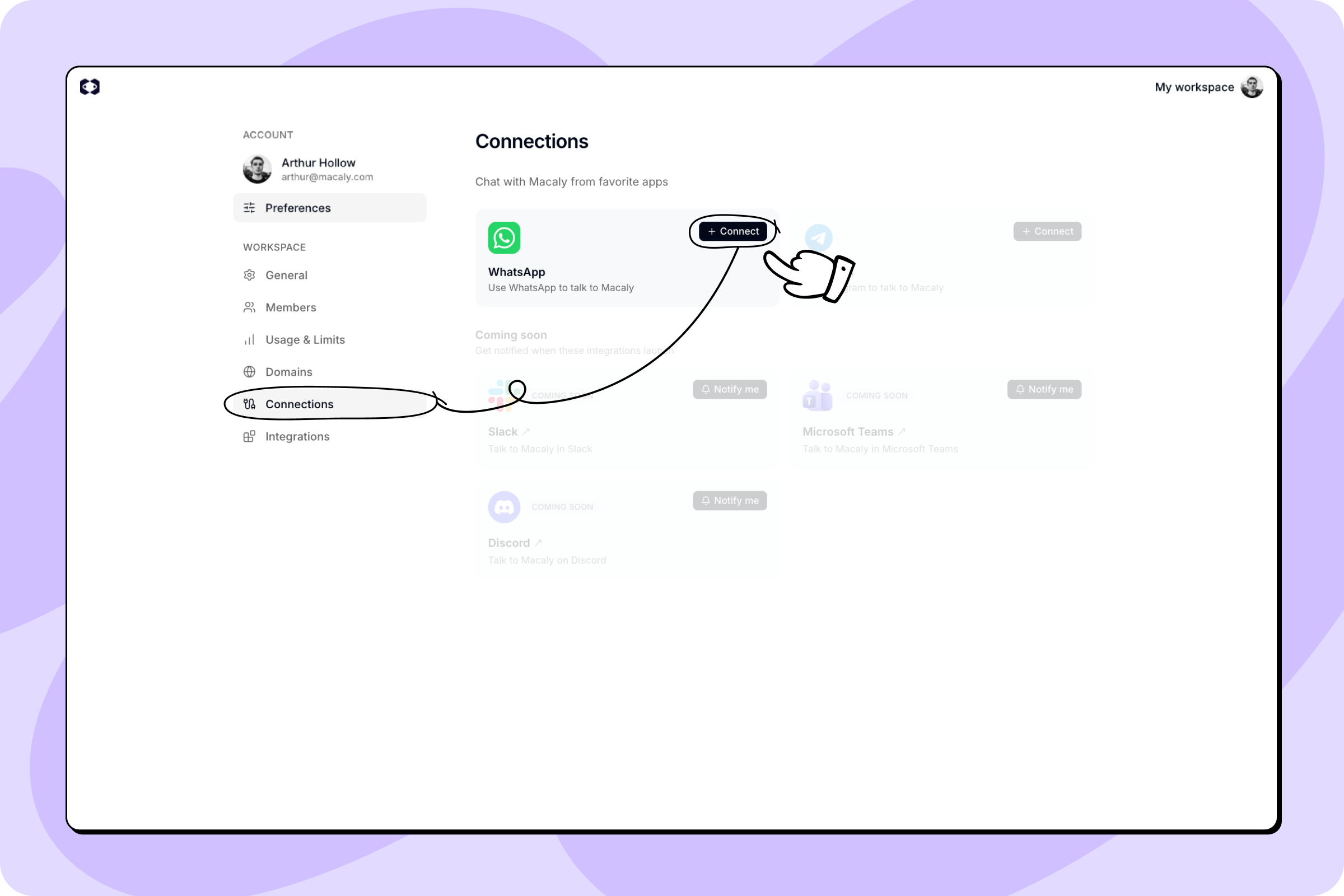
2
Open WhatsApp
Macaly shows a QR code and a connection link. Scan the QR code with your phone, or click Open WhatsApp to launch it on your computer or phone with the connection message pre-filled.
3
Send the connection message
Send the pre-filled
start [CODE] message to Macaly. If you scanned the QR code, type and send it from your phone.4
Start chatting
Macaly confirms the connection and shows the account it’s linked to. You can now message the agent any time from WhatsApp.
Bot commands
Send any of these in your WhatsApp chat with Macaly:Using several workspaces
You can connect the same WhatsApp number to up to 3 Macaly workspaces. This is handy if you work across multiple workspaces and want to reach all of them from a single chat.- Connect another workspace. Open Settings → Connections in the other workspace and connect it from the same WhatsApp number.
- Switch the active workspace. Send
/switchand pick a workspace from the buttons. Your next message starts a fresh conversation there. - See which one is active. Send
/status. The reply leads with the active workspace’s name.
Disconnecting
To disconnect, either send/unlink from WhatsApp, or open Settings → Connections in the app and remove the connected number.
If the chat is connected to just one workspace, it disconnects right away. If several are connected, /unlink asks which one to remove. Disconnecting a workspace you’re not currently using leaves your conversation untouched, and disconnecting the active one switches the chat to another connected workspace.
Good to know
- No setup with Meta required. You don’t need a WhatsApp Business account or any API keys. Just connect from Settings and start chatting.
- Credits work the same as in the web app. The agent’s work uses credits at the same rate as in the web app, plus a small extra amount when you send voice messages (for transcription).
- Up to 3 workspaces per phone number. You can link your WhatsApp number to several Macaly workspaces (3 at most) and switch between them with
/switch. Each workspace member can also connect their own number. - Voice message size limit. Voice messages can be up to 10 MB. Longer recordings won’t go through.