> ## Documentation Index
> Fetch the complete documentation index at: https://www.macaly.com/docs/llms.txt
> Use this file to discover all available pages before exploring further.
# Databases
> Learn how to store data and build features like forms and dashboards
A database is where your project stores information.
Any time your site or app needs to remember something, it uses a database. This could be:
* A message someone submits through a form
* An email address from a newsletter signup
* A blog post you publish
* A booking request or registration
* A user account or profile
Instead of information disappearing after a page reload, the database saves it so you can view it, use it, and act on it later.
You can think of a database like a spreadsheet that lives behind your site:
* Each **row** is one item (for example, one subscriber or one form submission)
* Each **column** is a piece of information (like email, name, or date)
Macaly uses databases to power anything that involves data, lists, forms, or dynamic content.
## **Databases, built in by default**
Every Macaly project comes with a database out of the box.
You don’t need to set up Supabase, create credentials, or connect any third-party database. The database is already there and ready to use.
Macaly’s database is powered by **Convex**, which means:
* Real-time updates by default
* Automatic scaling
* A clean admin interface that feels similar to Airtable or Notion
You can view, filter, and manage your data directly inside Macaly.
## **Common ways people use databases**
Databases are flexible and can support many different workflows. Below are common use cases, along with example prompts you can use to set them up.
### **Contact forms and leads**
A very common use case is storing contact form submissions.
Typical examples include:
* Contact forms
* Lead capture pages
* Feedback or inquiry forms
Each submission is saved as a new record in a database, so nothing gets lost.
**Example prompt**
> Add a database called “Leads” to store contact form submissions with fields for Name, Email, Phone, and Message. Connect the contact form so every new submission is automatically saved to the database.
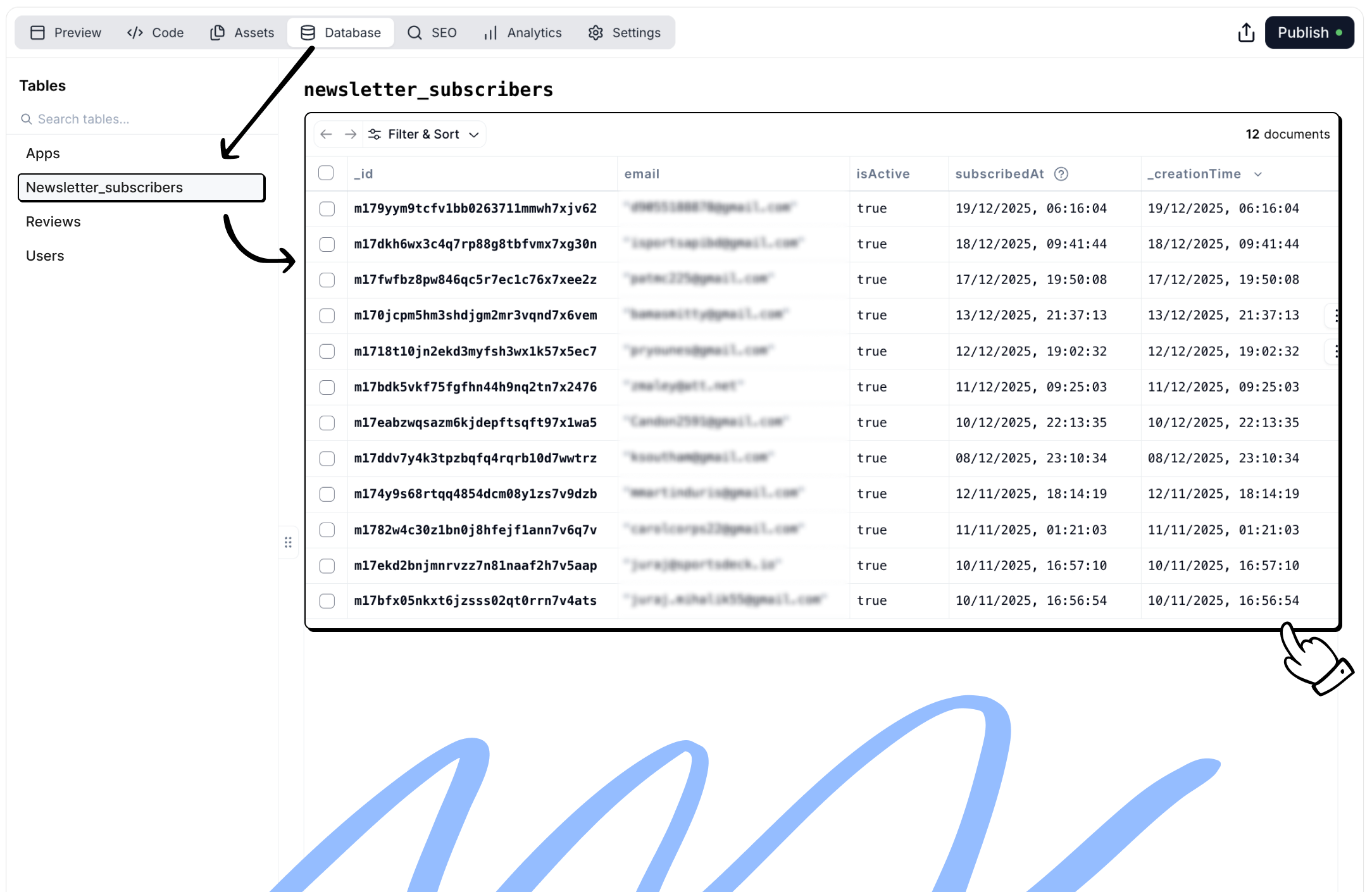
### **Newsletter and subscriptions**
Databases are often used to store newsletter subscribers or waiting lists.
This allows you to:
* Collect email addresses
* Track when someone subscribed
* Export the list later if needed
**Example prompt**
> Create a database called “Subscribers” to store newsletter signups with fields for Email and Subscription Date. Connect the email input on the page so each signup is saved automatically.
 ### **Content management (CMS)**
Databases can act as a content management system for dynamic content.
Common examples include:
* Blog posts
* Use cases
* Reviews
* FAQs
* Directories and listings
### **Content management (CMS)**
Databases can act as a content management system for dynamic content.
Common examples include:
* Blog posts
* Use cases
* Reviews
* FAQs
* Directories and listings
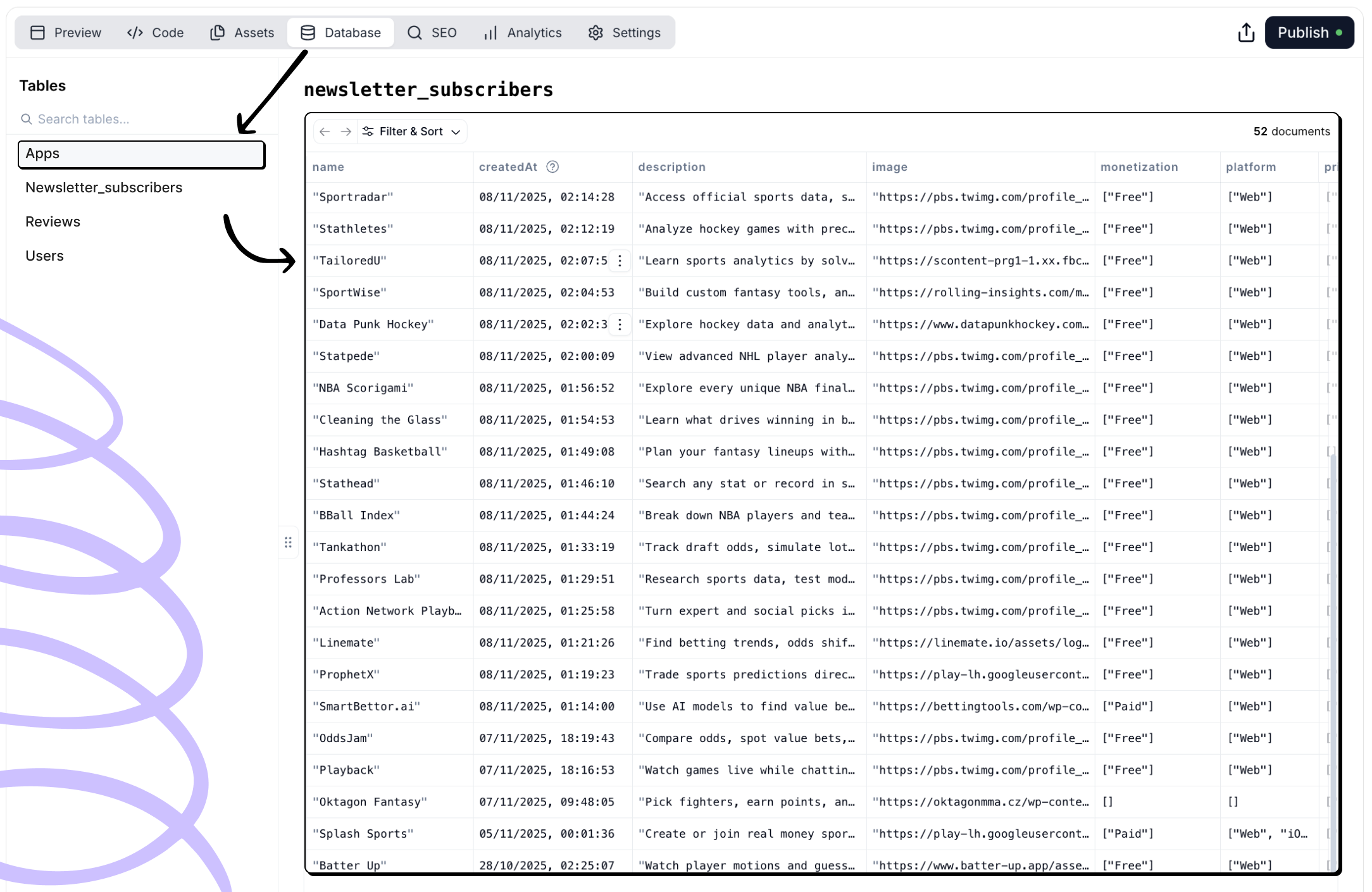 Instead of editing content directly on the page, you manage it as structured data.
**Example prompt**
> Create a database called “Posts” with fields for Title, Description, Content, Image, and Publish Date. Use it to render a list of blog posts on the website.
### **Booking systems and requests**
Databases can store booking or request information.
Typical examples include:
* Appointment requests
* Demo bookings
* Event registrations
Each request is saved so you can review or follow up later.
**Example prompt**
> Add a database called “Bookings” to store appointment requests with fields for Name, Email, Date, and Message. Connect it to the booking form on the site.
### **Admin dashboards and internal tools**
Databases are often paired with internal pages to create simple admin tools.
These are useful for:
* Reviewing form submissions
* Managing subscribers
* Moderating content
* Handling internal workflows
Access can be restricted using authentication.
**Example prompt**
> Create an admin dashboard at /admin with email and password authentication. Show a table of all newsletter subscribers with email and subscription date, and allow exporting the list as CSV.
### **Notifications and automated emails**
Databases can trigger actions when new data is created.
Common examples include:
* Notifying your team when a form is submitted
* Sending confirmation emails to users
**Example prompt**
> When a new form submission is received, send an email notification to [my@email.com](mailto:my@email.com) with the submitted details.
**Example prompt**
> After a form is submitted, send a confirmation email to the user thanking them and confirming receipt.
## **How to think about databases in Macaly**
If your project needs to:
* Store information
* Display lists of items
* Power forms or content
* Track users or submissions
You’ll likely need a database.
Macaly is designed so you don't have to understand database theory to use one. You describe what you want to store and how it should behave, and Macaly handles the structure and connections for you.
## **Testing databases**
By default, your Macaly app uses a single **Live database** shared between your published website and your chat/preview environment. This means changes you make in chat or preview immediately affect your live site.
Instead of editing content directly on the page, you manage it as structured data.
**Example prompt**
> Create a database called “Posts” with fields for Title, Description, Content, Image, and Publish Date. Use it to render a list of blog posts on the website.
### **Booking systems and requests**
Databases can store booking or request information.
Typical examples include:
* Appointment requests
* Demo bookings
* Event registrations
Each request is saved so you can review or follow up later.
**Example prompt**
> Add a database called “Bookings” to store appointment requests with fields for Name, Email, Date, and Message. Connect it to the booking form on the site.
### **Admin dashboards and internal tools**
Databases are often paired with internal pages to create simple admin tools.
These are useful for:
* Reviewing form submissions
* Managing subscribers
* Moderating content
* Handling internal workflows
Access can be restricted using authentication.
**Example prompt**
> Create an admin dashboard at /admin with email and password authentication. Show a table of all newsletter subscribers with email and subscription date, and allow exporting the list as CSV.
### **Notifications and automated emails**
Databases can trigger actions when new data is created.
Common examples include:
* Notifying your team when a form is submitted
* Sending confirmation emails to users
**Example prompt**
> When a new form submission is received, send an email notification to [my@email.com](mailto:my@email.com) with the submitted details.
**Example prompt**
> After a form is submitted, send a confirmation email to the user thanking them and confirming receipt.
## **How to think about databases in Macaly**
If your project needs to:
* Store information
* Display lists of items
* Power forms or content
* Track users or submissions
You’ll likely need a database.
Macaly is designed so you don't have to understand database theory to use one. You describe what you want to store and how it should behave, and Macaly handles the structure and connections for you.
## **Testing databases**
By default, your Macaly app uses a single **Live database** shared between your published website and your chat/preview environment. This means changes you make in chat or preview immediately affect your live site.
 Testing databases let you work in a safe, isolated environment without risking your production data.
### **How it works**
1. **Create a Testing database** - Copies all data from your Live database into a separate instance
2. **Make changes safely** - Work in chat and preview without affecting your published site
3. **Test thoroughly** - Verify everything works as expected
4. **Switch back to Live** - Your schema and function changes are applied automatically
5. **Publish** - Deploy your updates to users
### **Setting up a Testing database**
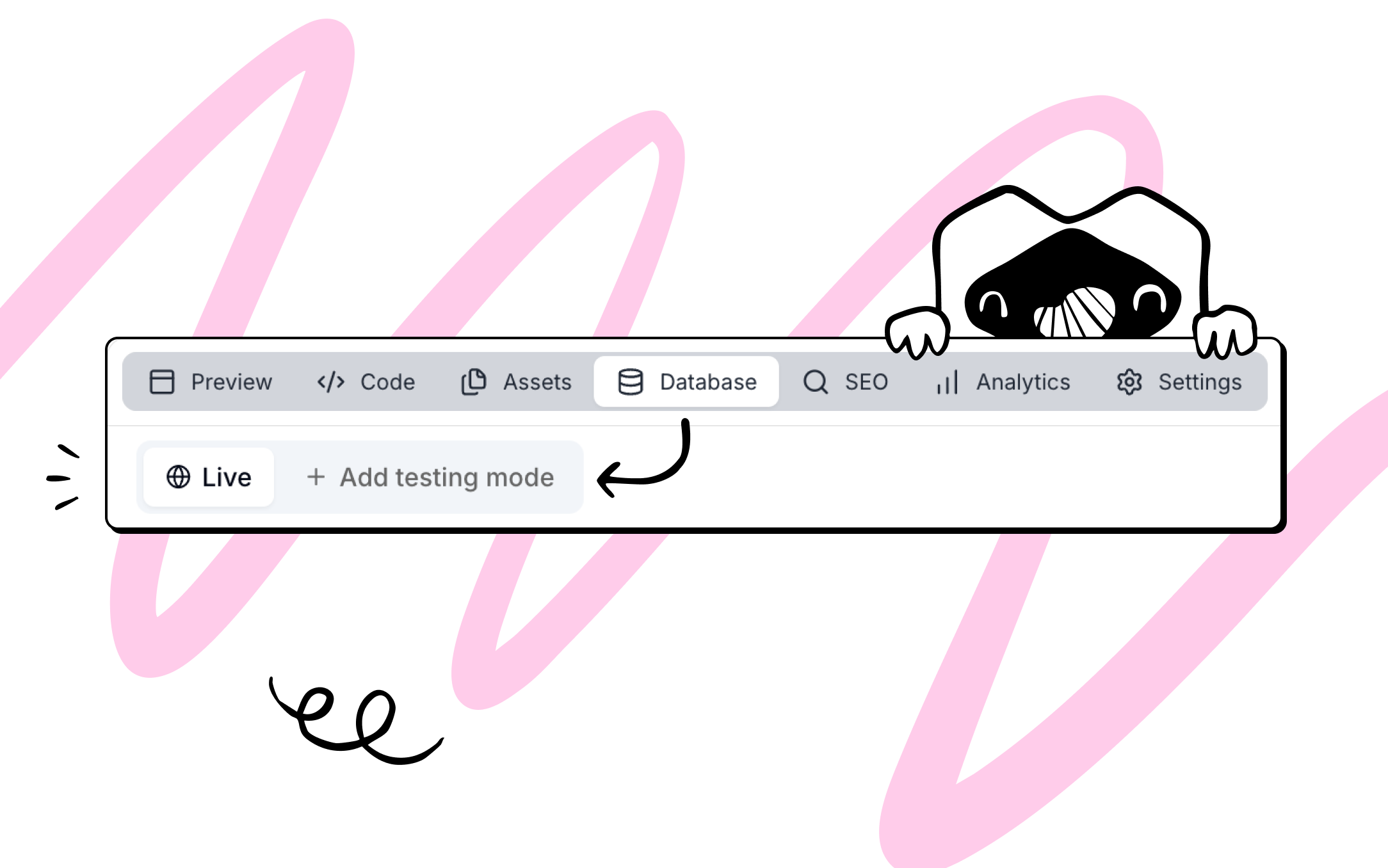
1. Open the **Database** tab in the chat
2. Click **"Add testing mode"**
3. Wait for setup to complete
Once created, you can switch between **Live** and **Testing** environments using the buttons in the Database tab. The preview updates to show data from whichever database is selected.
You can only publish when using the Live database. If you try to publish while using Testing, you'll be prompted to switch to Live first.
## **Frequently asked questions**
Macaly projects use Convex as the backend database. You can view and manage your data through the **Database** tab inside the Macaly editor.
Yes. [Contact support](mailto:support@macaly.com) and request a database snapshot for your project (include your project link). You will receive a download link for a ZIP file. Create your own Convex account, import the snapshot following the guide at docs.convex.dev, then update the Convex secrets in your Macaly project settings. There will be brief downtime during the cutover.
Yes. You can continue developing with Macaly after migrating to your own Convex database. The **Database** tab inside Macaly will no longer work, but all other functionality continues normally.
Testing databases let you work in a safe, isolated environment without risking your production data.
### **How it works**
1. **Create a Testing database** - Copies all data from your Live database into a separate instance
2. **Make changes safely** - Work in chat and preview without affecting your published site
3. **Test thoroughly** - Verify everything works as expected
4. **Switch back to Live** - Your schema and function changes are applied automatically
5. **Publish** - Deploy your updates to users
### **Setting up a Testing database**
1. Open the **Database** tab in the chat
2. Click **"Add testing mode"**
3. Wait for setup to complete
Once created, you can switch between **Live** and **Testing** environments using the buttons in the Database tab. The preview updates to show data from whichever database is selected.
You can only publish when using the Live database. If you try to publish while using Testing, you'll be prompted to switch to Live first.
## **Frequently asked questions**
Macaly projects use Convex as the backend database. You can view and manage your data through the **Database** tab inside the Macaly editor.
Yes. [Contact support](mailto:support@macaly.com) and request a database snapshot for your project (include your project link). You will receive a download link for a ZIP file. Create your own Convex account, import the snapshot following the guide at docs.convex.dev, then update the Convex secrets in your Macaly project settings. There will be brief downtime during the cutover.
Yes. You can continue developing with Macaly after migrating to your own Convex database. The **Database** tab inside Macaly will no longer work, but all other functionality continues normally.