> ## Documentation Index
> Fetch the complete documentation index at: https://www.macaly.com/docs/llms.txt
> Use this file to discover all available pages before exploring further.
# Showcase a project in the gallery
> Showcase your project in the community gallery and on your public profile
Showcasing puts your project in the community gallery and on your public profile, where anyone can open it. Nothing is shared automatically. Every project you see in the gallery was put there by its author on purpose.
Before you can showcase a project, it needs to be [published](/docs/en/features/domains) and you need a username. You can only showcase projects you created yourself.
## How to showcase a project in the community gallery
You can start from the project itself, or from the community page. Both routes work the same way.
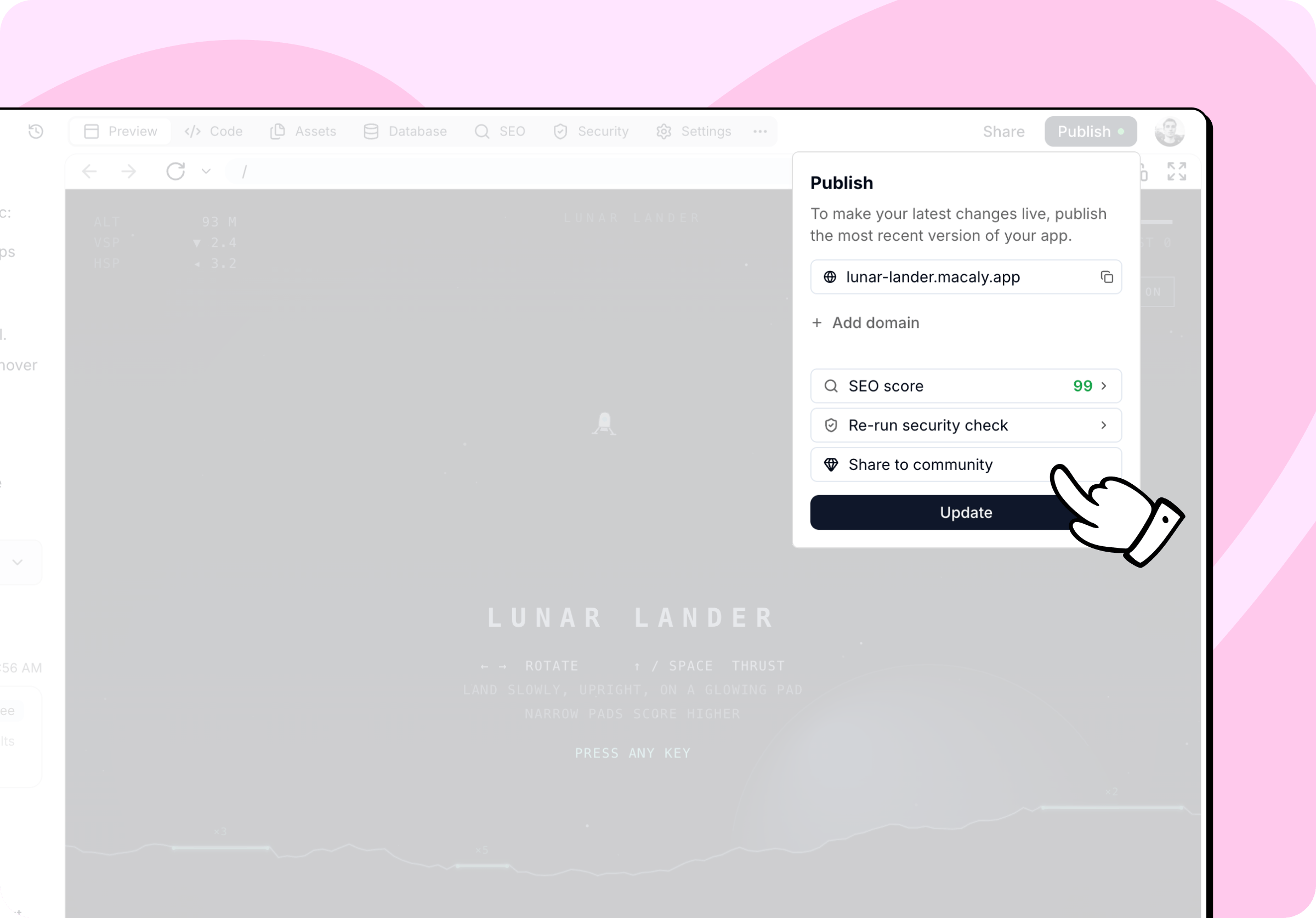
In your chat, open the **Publish** menu or the **Share** dialog and click **Share to community**. Until the project is published, the option stays disabled.
You can also click **Showcase project** in the community gallery or on your profile and pick from a list of all your projects. If a project isn't published yet, you'll need to publish it first.
 Upload your own 16:9 image, or use the screenshot Macaly generated. You can upload a PNG, JPG, or WebP file up to 5 MB.
Check the **Project name** and fill in the **Description** explaining what the project does and why you built it. You can also use **Write with AI**, which drafts the text for you based on your project.
Upload your own 16:9 image, or use the screenshot Macaly generated. You can upload a PNG, JPG, or WebP file up to 5 MB.
Check the **Project name** and fill in the **Description** explaining what the project does and why you built it. You can also use **Write with AI**, which drafts the text for you based on your project.
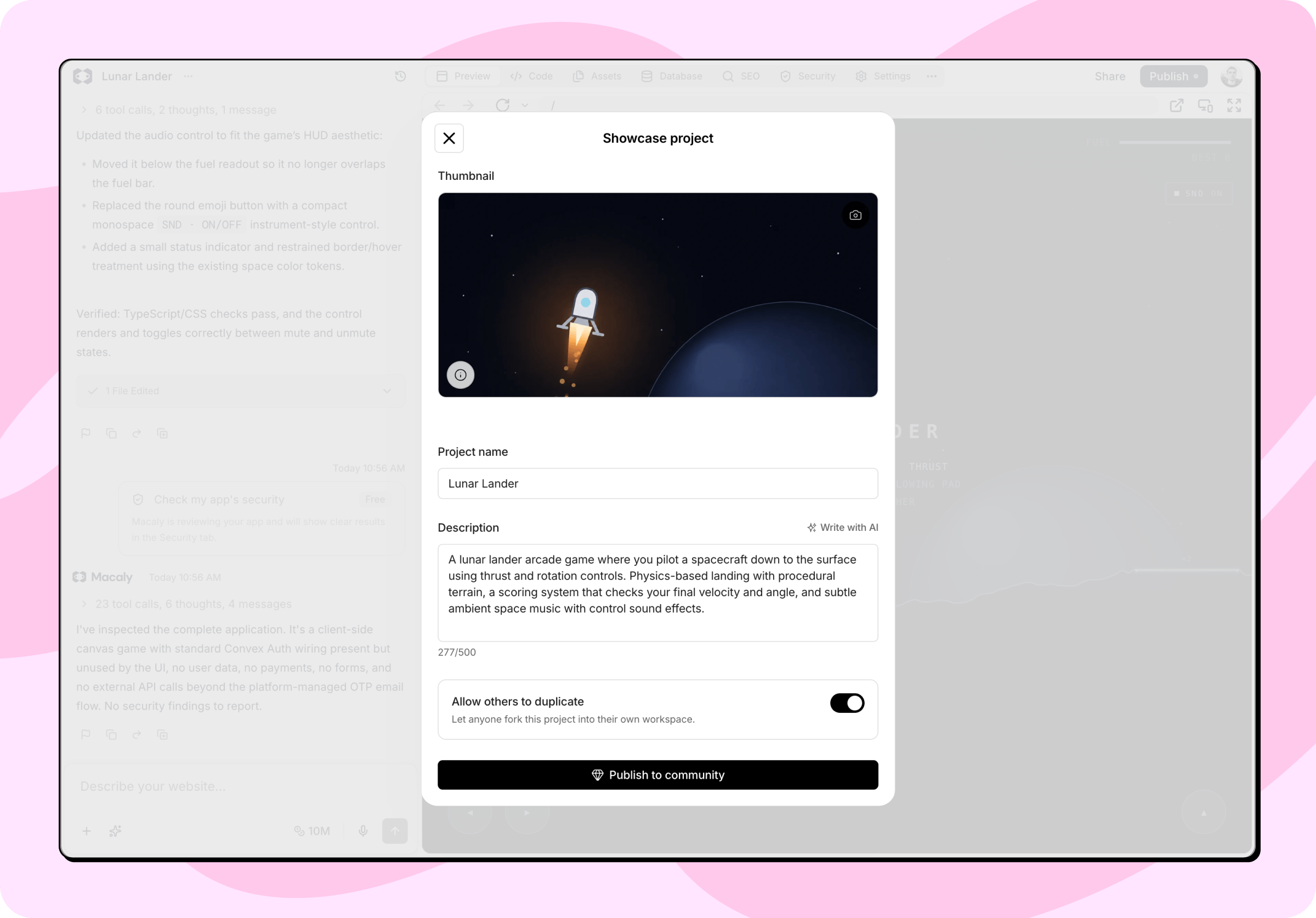 Click **Publish to community**. Your project appears in the gallery and on your public profile straight away.
Changing the project name also renames the chat itself.
## What's publicly visible
Showcasing publishes the project name, description, thumbnail, and a link to the live site, alongside your profile name, username, and picture. Visitors also see how often the project has been viewed, liked, and duplicated.
Your chat history always stays private. Showcasing a project in the community gallery has no effect on who sees the original chat. See [Sharing and visibility](/docs/en/chat/sharing).
## Allowing duplication
By default, other users can duplicate your project. While this is on, anyone signed in to Macaly can copy your project into their own workspace, source code included. They never see your chat history, your secrets, or anything in your database.
If you turn duplication off, your project stays in the gallery but others can't copy it. This is available on the Pro and Enterprise plans.
## Editing and removing
Use **Edit community showcase** while publishing the project, or **Edit project** on your project in the gallery, to change the thumbnail, name, description, or duplication setting at any time.
To take a project out of the gallery, click **Remove from community**. It disappears from the gallery and your profile immediately. Your description and thumbnail are kept, so you can showcase the project again with one click.
A project is also removed from the gallery automatically when you unpublish it or delete it.
Click **Publish to community**. Your project appears in the gallery and on your public profile straight away.
Changing the project name also renames the chat itself.
## What's publicly visible
Showcasing publishes the project name, description, thumbnail, and a link to the live site, alongside your profile name, username, and picture. Visitors also see how often the project has been viewed, liked, and duplicated.
Your chat history always stays private. Showcasing a project in the community gallery has no effect on who sees the original chat. See [Sharing and visibility](/docs/en/chat/sharing).
## Allowing duplication
By default, other users can duplicate your project. While this is on, anyone signed in to Macaly can copy your project into their own workspace, source code included. They never see your chat history, your secrets, or anything in your database.
If you turn duplication off, your project stays in the gallery but others can't copy it. This is available on the Pro and Enterprise plans.
## Editing and removing
Use **Edit community showcase** while publishing the project, or **Edit project** on your project in the gallery, to change the thumbnail, name, description, or duplication setting at any time.
To take a project out of the gallery, click **Remove from community**. It disappears from the gallery and your profile immediately. Your description and thumbnail are kept, so you can showcase the project again with one click.
A project is also removed from the gallery automatically when you unpublish it or delete it.