> ## Documentation Index
> Fetch the complete documentation index at: https://www.macaly.com/docs/llms.txt
> Use this file to discover all available pages before exploring further.
# Comments
> Collect feedback on a project directly in its preview and hand it to the agent
Comments let your collaborators or clients leave feedback on the exact element they mean, right in the preview of your project. A client points at a headline and writes "make this shorter", you reply in the thread, and when you're ready you hand the comment to the agent and it makes the change.
Invited users don't need a Macaly account. They open the share link, enter a name, and can comment right away.
Available on the [**Agency plan**](/docs/en/welcome/pricing) only
Commenting works on desktop only. On a phone, the shared preview opens for browsing only.
## Sharing a project for comments
1. In your chat, click **Share** in the top bar.
2. Choose **Anyone with the link**.
3. Set the permission to **Can comment**.
4. Copy the link and send it to your collaborators or clients.
**Can view** shows people the preview only, without comments. **Can comment** lets them browse, comment, and reply. The link is the same in both cases, and switching a project back to **Can view** doesn't delete the comments that already exist.
Collaborators and clients see the latest preview of your project. The chat history is never part of the shared link. See [Sharing and visibility](/docs/en/chat/sharing) for the other options.
## Leaving a comment
The shared link opens the live preview of your project. Click **Comment** to see the comments that are already there and to add your own: click any element on the page and a comment box opens for it. Until then, the preview works like the site itself.
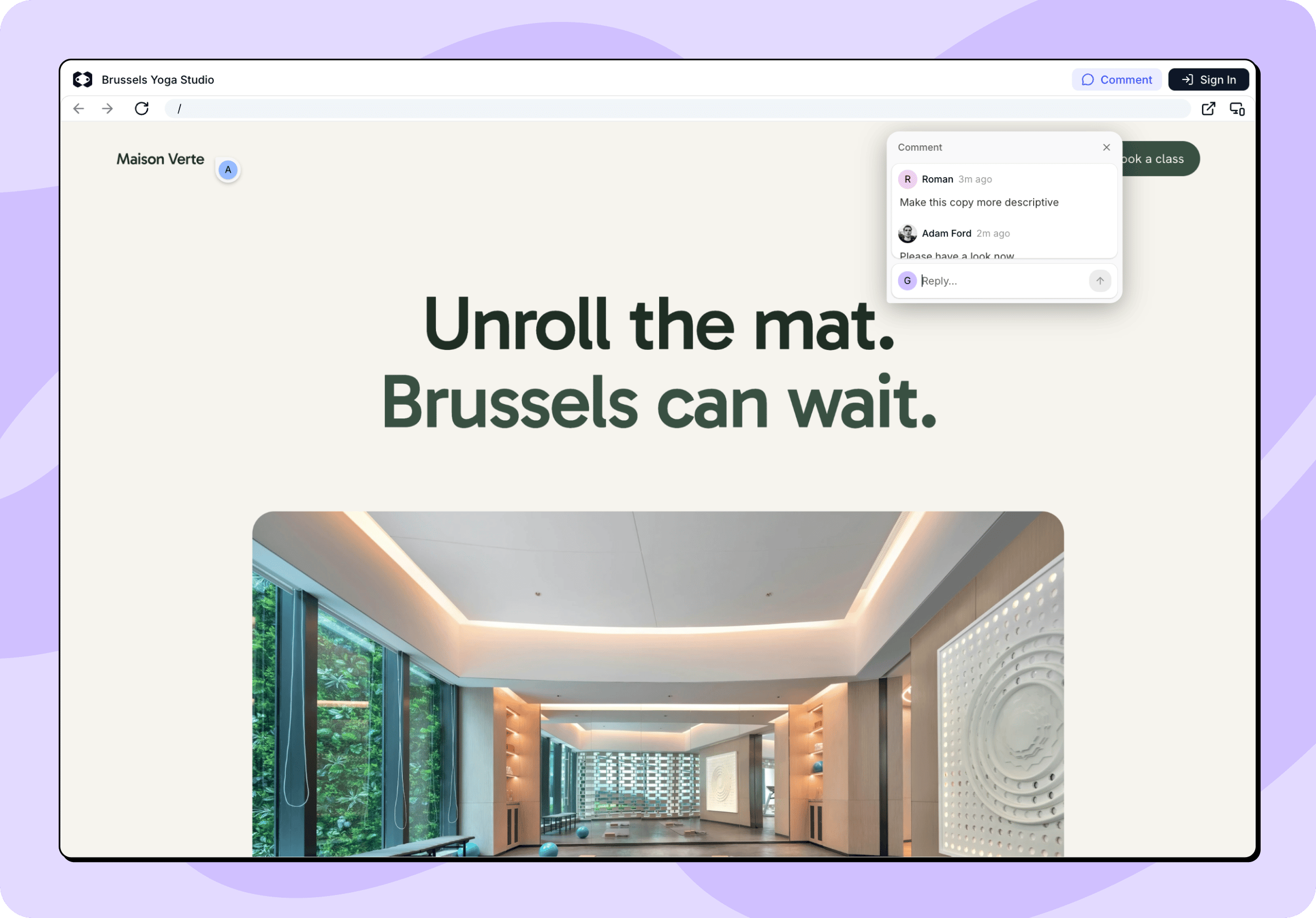 When someone leaves their first comment, Macaly asks for a name and an email. The name is shown next to their comments, the email is used only for replies about this project, and neither creates a Macaly account. The name can be changed later with **Change your name**.
Each comment is pinned to the element the user selected. Macaly also records what the preview looked like at that moment, so you can see what the user saw even after the page has changed.
## Reviewing feedback
In your chat, click **Comment** above the preview. Pins appear on the page where comments were left, and the **Comments** panel opens on the left in place of the conversation, listing every thread in the project with the number of open and unread comments. You can add comments of your own here too.
When someone leaves their first comment, Macaly asks for a name and an email. The name is shown next to their comments, the email is used only for replies about this project, and neither creates a Macaly account. The name can be changed later with **Change your name**.
Each comment is pinned to the element the user selected. Macaly also records what the preview looked like at that moment, so you can see what the user saw even after the page has changed.
## Reviewing feedback
In your chat, click **Comment** above the preview. Pins appear on the page where comments were left, and the **Comments** panel opens on the left in place of the conversation, listing every thread in the project with the number of open and unread comments. You can add comments of your own here too.
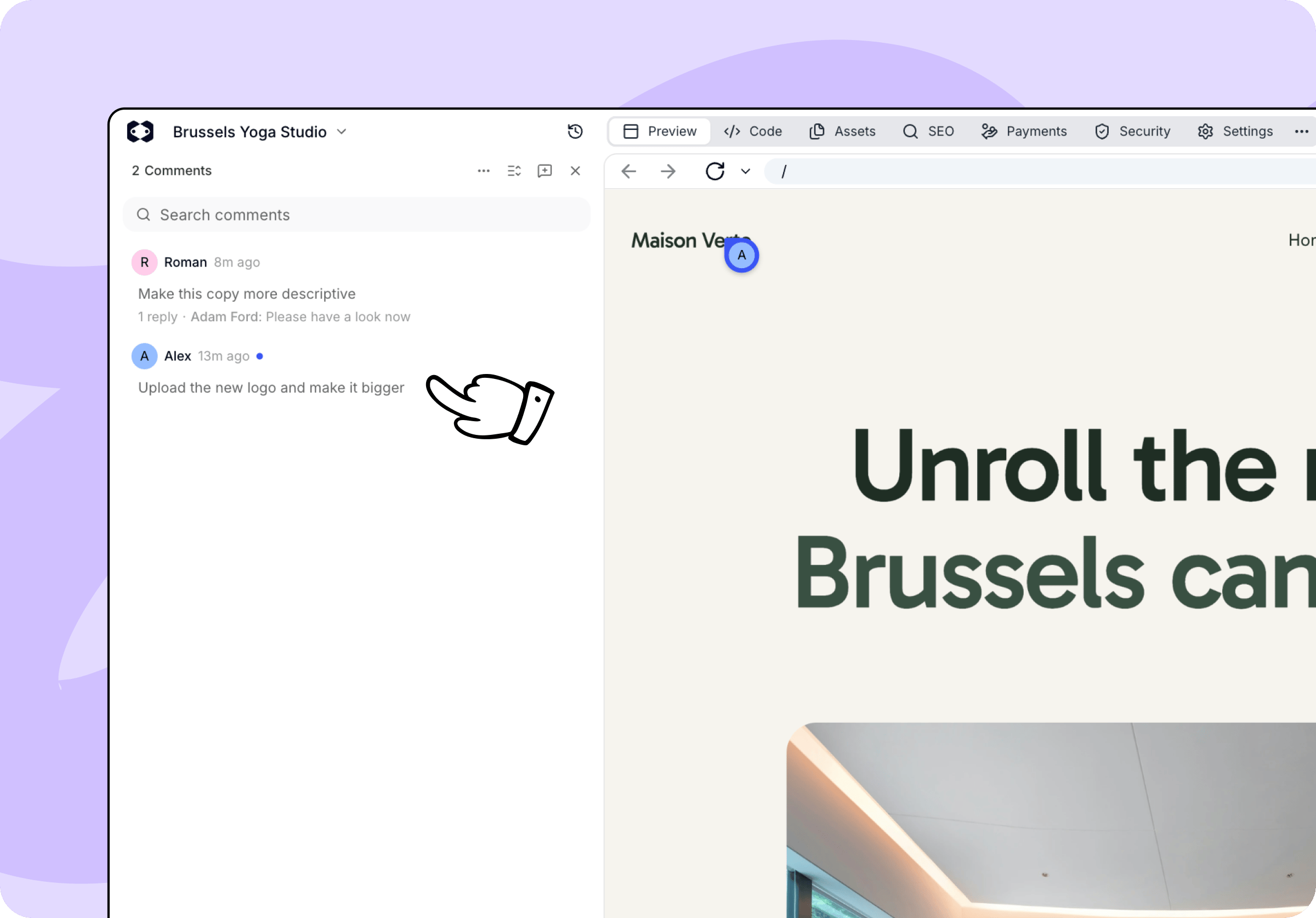 From the panel you can:
* **Reply** in a thread. Commenters see the reply on the shared page.
* **Resolve** a thread when it's dealt with, and **Reopen** it if you come back to it. A new reply also reopens a resolved thread.
* **Search** comments and sort them by date or by unread comments.
* **Show resolved** to look back at earlier feedback.
A thread marked **Disconnected anchor** points at an element that has since been removed or changed. The comment and its captured preview remain, only the pin no longer shows in the live preview.
## Sending comments to the agent
You don't have to retype feedback into a prompt by hand. Click **Add to chat** on a thread and the comment, together with the element it points at, lands in your message box. **Add all open to chat** collects every open thread at once. Add anything you want to say, then send the message.
The agent works through the feedback like any other request. You can keep reading and replying to comments while it works, and resolve the threads once you've checked the result.
Changes the agent makes in response to comments use credits like any other request. Commenting, replying, and resolving threads don't use credits.
From the panel you can:
* **Reply** in a thread. Commenters see the reply on the shared page.
* **Resolve** a thread when it's dealt with, and **Reopen** it if you come back to it. A new reply also reopens a resolved thread.
* **Search** comments and sort them by date or by unread comments.
* **Show resolved** to look back at earlier feedback.
A thread marked **Disconnected anchor** points at an element that has since been removed or changed. The comment and its captured preview remain, only the pin no longer shows in the live preview.
## Sending comments to the agent
You don't have to retype feedback into a prompt by hand. Click **Add to chat** on a thread and the comment, together with the element it points at, lands in your message box. **Add all open to chat** collects every open thread at once. Add anything you want to say, then send the message.
The agent works through the feedback like any other request. You can keep reading and replying to comments while it works, and resolve the threads once you've checked the result.
Changes the agent makes in response to comments use credits like any other request. Commenting, replying, and resolving threads don't use credits.