> ## Documentation Index
> Fetch the complete documentation index at: https://www.macaly.com/docs/llms.txt
> Use this file to discover all available pages before exploring further.
# Telegram
> Chat with the Macaly agent over Telegram
Macaly's Telegram connection lets you chat with the Macaly agent from your phone. Send a message in Telegram, get a reply, keep working on your projects without opening the web app.
Available on the [**Pro and Enterprise plans**](/en/welcome/pricing)
## What you can do
The Telegram agent works on the same projects you build in the web app. Anything you'd normally ask the agent to do, you can ask from Telegram:
* **Start a new project.** Describe what you want to build and the agent gets to work, just like in the web app.
* **Edit your existing projects.** Ask for changes, fixes, or new sections. If you have several projects and don't say which one, the agent will ask.
* **Publish and manage.** Publish a project, change its subdomain, or check what's live.
* **Ask quick questions.** Get help, ideas, or status updates without breaking your flow.
When the agent makes changes, it sends you a preview link so you can check the result without leaving Telegram.
## What you can send
The agent currently works with:
* **Text messages.** Just type and send.
* **Voice messages.** Macaly transcribes them and replies. Useful when typing isn't practical.
Photos, videos, and files aren't supported yet. Replies come back as plain text without rich formatting or link previews.
## How to set it up
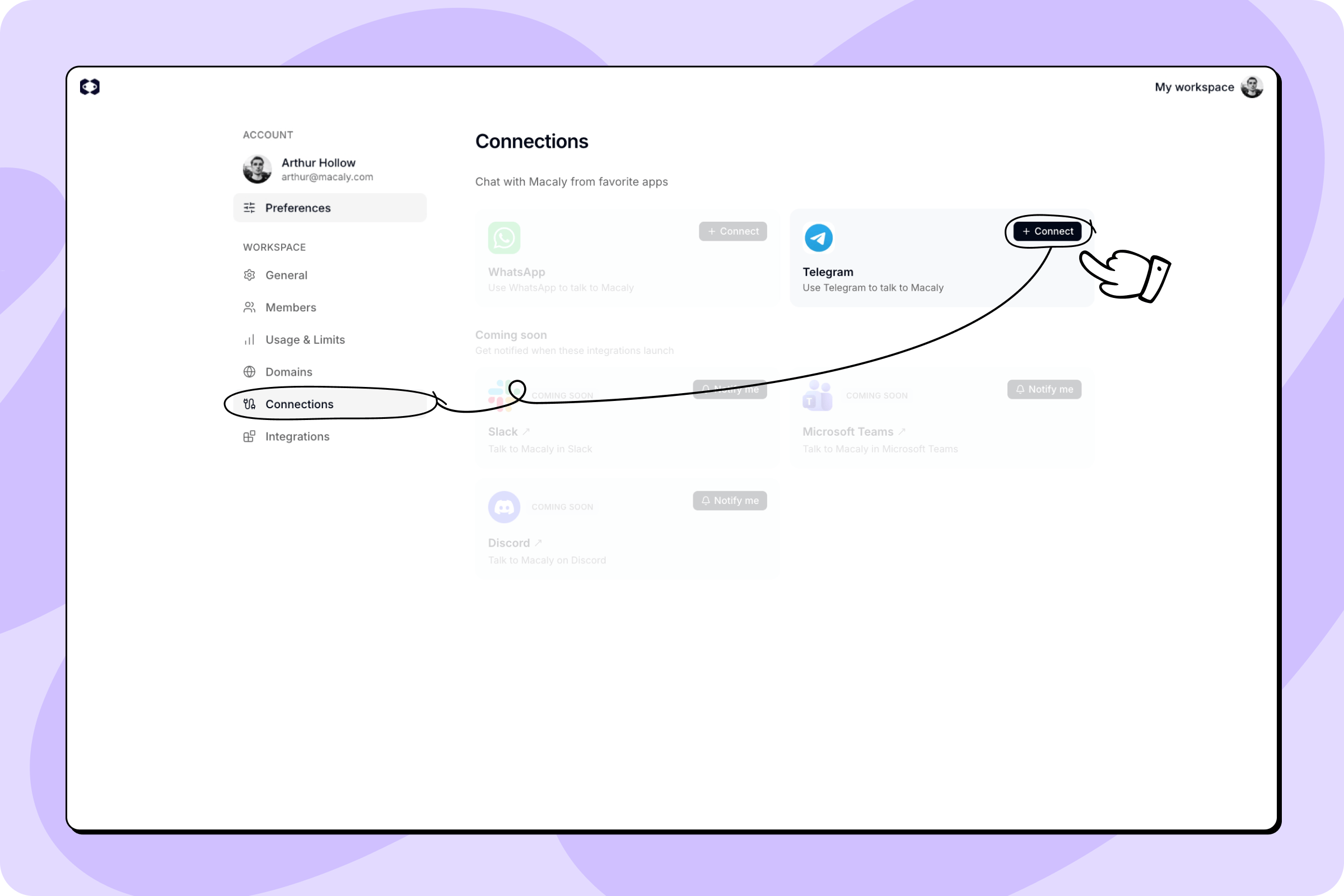
In Macaly, go to **Settings → Connections** and click **Connect** on the Telegram card.
 Macaly shows a QR code and a connection link. Scan the QR code with your phone, or click **Open Telegram** to launch it on your computer or phone with the connection code pre-filled.
Telegram opens a chat with the Macaly bot and the `/start [CODE]` message pre-filled. Press **Start** (or send the message) to connect.
Macaly confirms the connection and shows the account it's linked to. You can now message the agent any time from Telegram.
The connection code is valid for 15 minutes. If it expires, generate a new one from the Connections settings.
## Bot commands
Send any of these in your Telegram chat with Macaly:
| Command | What it does |
| --------- | ----------------------------------------------------- |
| `/new` | Start a new conversation thread with the agent. |
| `/status` | Check the status of your connection and current chat. |
| `/unlink` | Disconnect Telegram from your Macaly workspace. |
| `/help` | List the available commands. |
## Disconnecting
To disconnect, either send `/unlink` from Telegram, or open **Settings → Connections** in the app and remove the connected account.
Either way works. The connection stops immediately and is cleared.
## Good to know
* **No bot setup required.** You don't need to create your own Telegram bot or get an API key. Just connect from Settings and start chatting.
* **Credits work the same as in the web app.** The agent's work uses credits at the same rate as in the web app, plus a small extra amount when you send voice messages (for transcription).
* **One workspace per Telegram account.** Your Telegram account can only be linked to one Macaly workspace at a time, but each workspace member can connect their own account. To use your account with a different workspace, disconnect first.
* **Voice message size limit.** Voice messages can be up to 10 MB. Longer recordings won't go through.
Macaly shows a QR code and a connection link. Scan the QR code with your phone, or click **Open Telegram** to launch it on your computer or phone with the connection code pre-filled.
Telegram opens a chat with the Macaly bot and the `/start [CODE]` message pre-filled. Press **Start** (or send the message) to connect.
Macaly confirms the connection and shows the account it's linked to. You can now message the agent any time from Telegram.
The connection code is valid for 15 minutes. If it expires, generate a new one from the Connections settings.
## Bot commands
Send any of these in your Telegram chat with Macaly:
| Command | What it does |
| --------- | ----------------------------------------------------- |
| `/new` | Start a new conversation thread with the agent. |
| `/status` | Check the status of your connection and current chat. |
| `/unlink` | Disconnect Telegram from your Macaly workspace. |
| `/help` | List the available commands. |
## Disconnecting
To disconnect, either send `/unlink` from Telegram, or open **Settings → Connections** in the app and remove the connected account.
Either way works. The connection stops immediately and is cleared.
## Good to know
* **No bot setup required.** You don't need to create your own Telegram bot or get an API key. Just connect from Settings and start chatting.
* **Credits work the same as in the web app.** The agent's work uses credits at the same rate as in the web app, plus a small extra amount when you send voice messages (for transcription).
* **One workspace per Telegram account.** Your Telegram account can only be linked to one Macaly workspace at a time, but each workspace member can connect their own account. To use your account with a different workspace, disconnect first.
* **Voice message size limit.** Voice messages can be up to 10 MB. Longer recordings won't go through.